Power Apps login is at the center of every app experience you deploy to your organization. With the Microsoft Power Platform now serving over 56 million monthly active users in 2025, your sign‑in strategy directly affects adoption, security, and productivity. In this guide, we walk through how we design, secure, and troubleshoot Power Apps login so your users can access business-critical apps quickly and safely from any device.
Key Takeaways
| Question | Short Answer & Resource |
|---|---|
| 1. How do users normally log in to Power Apps? | Users authenticate with Microsoft Entra ID (formerly Azure AD) using their work or school account. Our getting started with Power Apps guide shows the end-user flow. |
| 2. What’s the safest way to protect Power Apps login? | Enable MFA, conditional access, and environment-based security. See our Power Apps security best practices overview. |
| 3. Where do I configure user access for a new app? | Access is controlled via environments, security roles, and sharing settings. We cover publishing and sharing in how to use Power Apps for your projects. |
| 4. How does login differ between Power Apps and Power Automate? | Both rely on Entra ID, but apps focus on interactive sign-in, while flows rely more on service principals and connections. We compare scenarios in Power Apps vs Power Automate. |
| 5. Can we integrate external APIs and keep login secure? | Yes. Use custom connectors and choose OAuth 2.0 or API keys carefully. Our step‑by‑step article how to create a Power Apps custom connector explains the authentication options. |
| 6. How do we troubleshoot Power Apps login errors? | Start with environment access, license checks, and connector authentication. Then apply the patterns from Power Apps troubleshooting tips. |
| 7. What’s the best way to train staff on using Power Apps login? | Combine short end‑user sessions with admin-focused workshops. Our Power Apps consulting services include training on governance and sign‑in practices. |

1. Understanding How Power Apps Login Works in 2026
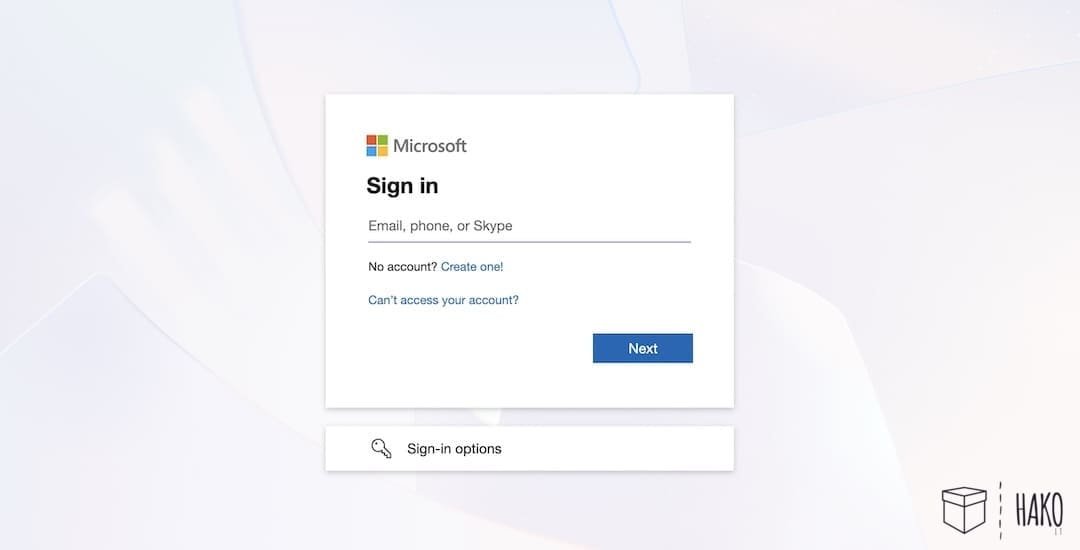
Power Apps login is built on Microsoft Entra ID, the same identity platform behind Microsoft 365. Every time a user opens a canvas or model-driven app, their identity, groups, and security context flow from Entra ID into the Power Platform environment and Dataverse or connected data sources.
From our perspective as implementers, login is not just about entering credentials. It defines what data users can see, which actions they can take, and how safely they can use connectors like SharePoint, SQL, or custom APIs. That’s why we always start every Power Apps project with a clear sign‑in and authorization design.
2. Power Apps Login Options: Web, Mobile, and Embedded Experiences
Users can sign in to Power Apps from a browser, the Power Apps mobile app, or embedded experiences such as Power BI tiles and external portals. The same Entra ID account underpins each entry point, but the UX and policies can differ slightly by channel.
We recommend standardizing user guidance: teach staff to start from make.powerapps.com for creation and from a curated app list or Teams integration for daily usage. On mobile, the Power Apps app caches login securely, so subsequent launches are often instant once MFA is satisfied.

3. Setting Up Accounts and Environments for Reliable Login
For a smooth Power Apps login experience, we focus first on tenant and environment configuration. Entra ID must hold all user accounts, and each account needs the right Power Apps or Power Platform licenses assigned before they can access apps.
On top of licensing, environment strategy is crucial. We separate development, test, and production environments so logins map to appropriate data and roles. That setup also helps us implement different security policies—for example, stricter conditional access on production apps.


4. Security and MFA: Protecting Power Apps Login Without Slowing Users Down
Power Apps inherits security from Entra ID, so we use the same enterprise-grade controls: multi‑factor authentication, conditional access, and sign‑in risk policies. MFA adds a second step to login, such as a push notification or biometric check, which drastically reduces credential theft risk.
We then add Power Platform–specific layers: environment-level security, Dataverse role-based access control (RBAC), and data loss prevention policies. This way, even if a login succeeds, a user only reaches the data and connectors that align with their role.

5. Designing Login-Aware Apps: Personalization, Roles, and Data Access
Once login is in place, we use the signed‑in user context inside apps to personalize the experience. For example, the User() function in canvas apps returns the current user’s email and name, which we can map to Dataverse security roles or SharePoint groups.
We commonly design apps with role‑based screens: a manager sees approval queues, while a frontline worker sees only their own tasks. This design keeps Power Apps login simple for users while enforcing least privilege access at the UI and data layers.

Role-Based Login Experience Comparison
| Role | Typical Login Flow | Data Visible After Login |
|---|---|---|
| Frontline Worker | Mobile sign-in with MFA | Own records (e.g., tasks, inspections) |
| Team Lead | Browser or Teams with conditional access | Team data and approval queues |
| Administrator | Browser, stricter conditional access | Environment-wide configuration, logs, and governance tools |
6. Passwordless and Future Login Trends in Power Apps
We are seeing rapid adoption of passwordless sign‑in methods—such as FIDO2 security keys, Windows Hello, and Authenticator app passkeys—for accounts that use Power Apps. Removing passwords reduces phishing risk and simplifies the daily sign‑in step for users who open apps multiple times per day.
From a Power Apps perspective, passwordless does not change how apps are built, but it does change user behavior. With lower friction at login, we design apps assuming users will frequently jump in for short tasks rather than batch work, which has implications for performance and caching design.
7. Connections, Custom Connectors, and API Login
Beyond user login, every app connection to external systems also needs authentication. For built‑in connectors such as SharePoint or Dataverse, the connector uses the signed‑in user’s Entra ID token, which keeps permissions aligned. For SQL Server or on-premises data, we decide whether to use delegated user permissions or service accounts.
When we create custom connectors, we pay close attention to the authentication type: API key, basic auth, or OAuth 2.0. Each option affects how users log in the first time they create a connection, and whether the app acts on behalf of the current user or a central service identity.

8. Common Power Apps Login Problems and How We Troubleshoot Them
Most Power Apps login incidents we see fall into a few repeatable categories: missing licenses, revoked or expired connections, environment access issues, and conditional access misconfigurations. Users often report these as generic errors like “You do not have permission” or timeouts when launching an app.
Our troubleshooting workflow is structured and quick. First we confirm sign‑in works for Microsoft 365 in general, then check app environment access, then inspect connectors and DLP policies. Only after that do we look at client‑side issues such as outdated mobile app versions.
Login Issue Comparison Table
| Symptom | Likely Cause | First Check |
|---|---|---|
| User can log into Outlook but not Power Apps | Missing Power Apps/Power Platform license | Verify license assignment in Entra ID / M365 admin center |
| App loads but data list is empty | Connector permissions or DLP blocking data | Check connection owner and DLP policy in Power Platform admin |
| Access denied after MFA prompt | Conditional access policy blocking the app | Review sign‑in logs and conditional access report-only mode |
9. Admin Governance: Auditing, Monitoring, and Compliance Around Login
For administrators, Power Apps login governance is about visibility and control. We use sign‑in logs from Entra ID together with Power Platform’s monitoring tools to track who is accessing which apps, from where, and with which devices.
We also leverage environment-level analytics and the Power Apps Monitor tool to spot unusual patterns—such as sudden spikes in failed logins or connection errors—that might indicate configuration drift or a security issue. These signals help us align with internal audit and compliance requirements.

Login Monitoring “Bar Chart” Summary
We often summarize login-related signals for stakeholders in a simple bar-chart style summary:
- Successful sign-ins this week: ██████████████ 92%
- Failed sign-ins (policy blocks): █ 3%
- Failed sign-ins (user error / wrong password): ██ 5%
This makes it easy for non-technical leaders to understand login health without diving into raw logs.
10. Login in Integrated Scenarios: Power Apps, Power Automate, and Power BI
In many solutions we build, Power Apps login is only one part of the picture. The same user identity flows into Power Automate flows that run behind the scenes and into Power BI reports embedded in apps. Consistent identity ensures approvals, notifications, and analytics all respect the same security boundaries.
When embedding Power BI into Power Apps, we decide whether to use the user’s own identity or a service principal with row-level security. That choice affects both login experience and licensing, so we review it with stakeholders early in solution design.

Integrated Login Comparison Table
| Component | How Login Works | Key Consideration |
|---|---|---|
| Power Apps | Interactive Entra ID sign‑in via web or mobile | MFA and conditional access policies |
| Power Automate | Connections using user or service principal identity | Choosing run‑as identity and connection owners |
| Power BI (embedded) | User identity or service principal with RLS | Balancing security, performance, and licensing |
Key Takeaways Recap
To close, we summarize the most important points around Power Apps login and how we approach them in client projects.
| Key Takeaway | Why It Matters |
|---|---|
| Power Apps login is fully based on Microsoft Entra ID identity. | You gain enterprise-grade availability, security policies, and centralized user management. |
| Environment and role design are as important as the sign‑in page. | They determine what each user actually sees and can do after logging in. |
| MFA and passwordless methods should be the default for business apps. | They reduce breach risk while keeping login convenient for frequent app users. |
| Custom connectors and integrations must follow a clear authentication strategy. | Poor choices here can either over‑expose data or frustrate users with repeated logins. |
| Monitoring sign‑ins and connection errors is part of ongoing governance. | It prevents minor login issues from becoming widespread outages or compliance problems. |
Frequently Asked Questions about Power Apps login
What account do I need for power apps login?
You need a Microsoft work, school, or guest account managed through Microsoft Entra ID.
Can external users access Power Apps?
Yes, with guest access enabled and proper permissions assigned.
Why does my power apps login work but I can’t see any apps?
You likely lack permissions or access to the correct environment.
Is MFA mandatory for Power Apps?
Not by default, but it’s highly recommended and often required by security policies.
Can I restrict login by location or device?
Yes, using conditional access policies in Entra ID.
Is Power Apps login secure enough for enterprise use?
Absolutely. It meets enterprise-grade security and compliance standards.
Conclusion
Power Apps login is far more than a username and password screen. It is a complete identity and access strategy that touches Entra ID, environments, roles, connectors, and embedded analytics. When we design it carefully, users enjoy fast, seamless access and your data remains well protected.
As organizations continue to scale Power Apps usage and move toward passwordless sign‑in, we see login becoming both more secure and more user‑friendly. By applying the practices outlined in this guide—strong identity, clear role design, thoughtful connector authentication, and continuous monitoring—you can give your teams reliable access to the apps they rely on every day.
Free Power Apps Tutorials and Guides:
Do you want to continue learning about Power Apps? Below is a simple and easy beginner’s tutorial for creating an application with a SharePoint or Excel list:
Getting Started with Power Apps | Complete Step-by-Step Guide
20 Power Apps Examples 📱 and Use Cases
How to Use Power Apps for Your Projects | Beginner’s Guide
Create an APP with EXCEL in 5 Steps| Microsoft Power Apps
👉 Contact us for more information or schedule a meeting.