
The Power Apps Developer Plan is one of the most overlooked offers in the Microsoft ecosystem, especially considering that it is free to sign up while giving you a full-featured environment for building and testing apps. As Power Platform usage climbs to tens of millions of monthly users, organizations need a clear way to experiment, train developers, and prototype solutions without impacting production.
In this guide, we share how we approach the Power Apps Developer Plan in real projects, how to combine it with tools like cost calculators, CSV converters, JSON utilities, and custom connectors, and how to structure an internal “developer plan” that scales.
| Question | Short Answer | Where to Learn More |
|---|---|---|
| What is the Power Apps Developer Plan? | A free, individual environment for building, testing, and learning Power Apps, Power Automate, and Dataverse with full functionality but no production use. | Getting started with Power Apps |
| How much does the Developer Plan cost? | The plan itself is free; however, you should still understand production licensing using a Power Platform cost calculator when you move apps to real users. | Use the calculator to simulate per-user, Dataverse, and Power Automate costs. |
| Who is eligible to sign up? | You must use a work or school account; personal Microsoft accounts are not supported. | Check Microsoft Learn and our Power Apps introduction for broader context. |
| What can I build in the Developer Plan? | Canvas apps, model-driven apps, and Power Pages-style experiences connected to Dataverse or external data sources, including custom APIs. | See our custom connector guide for API scenarios. |
| How do I manage data and CSV files? | Use tools that convert CSV to Power Apps collections and back, which speeds up test data preparation and export. | CSV ⇄ Power Apps collection tool |
| Where can I get expert help and consulting? | Partner with a consulting team that specializes in Power Apps architecture, governance, and best practices. | Power Apps consulting services |
1. What the Power Apps Developer Plan Really Is (and Isn’t)
When we talk about a “Power Apps developer plan”, we mean two things: the official Power Apps Developer Plan from Microsoft, and the broader internal program you set up to help your developers build safely. Officially, the Developer Plan gives each maker a personal environment with full Power Apps, Power Automate, and Dataverse features for development and testing only.
It is not a production license, and you should not run live business processes or expose real external users there. Instead, we use it to explore new ideas, prototype complex logic, and configure integrations that later move into production environments governed by your organization’s licensing and security policies.

2. Core Benefits of the Power Apps Developer Plan for Organizations
We see the Developer Plan as a low-risk sandbox for individual learning and innovation. Each developer or advanced business user can experiment without requesting production resources, while still working with real Dataverse entities, connectors, and automation flows. This shortens the feedback loop and encourages self-service experimentation.
From an IT perspective, the Developer Plan also acts as a buffer between your main tenant and risky experiments. Developers test complex logic, APIs, and data models in their own environments, then we standardize and review the best solutions before promoting them to shared dev, test, and production environments that follow your governance framework.
Power Apps Developer Plan Environment Setup
Setting up the power apps developer plan is straightforward:
- Sign in with a Microsoft account
- Request the developer plan
- Microsoft provisions a personal environment
- Access Power Apps and Dataverse instantly
Your environment resets periodically if inactive, so active usage is encouraged.

3. Power Apps Developer Plan Features and Limits You Should Know
The Developer Plan includes full Power Apps capabilities for building canvas and model-driven apps, plus Dataverse for structured data. It also allows you to run flows in Power Automate, call connectors, and manage tables, security roles, and business rules, making it very close to what you see in paid production environments.
However, there are limits designed to keep this plan focused on development. For example, you have constrained Dataverse storage and flow run capacity, and the environment is for a single developer, not a full production user base. Understanding these boundaries is essential when designing proof-of-concept solutions that will later scale to many users.

4. Cost Planning: From Free Developer Plan to Production Licensing
While the Developer Plan itself is free, we always plan ahead for the moment an app proves its value and needs to go live. That is where understanding Power Apps, Power Automate, Dataverse, and Power Pages pricing becomes critical. We model these costs early so stakeholders are not surprised when a prototype becomes a core application.
To handle this, we recommend simulating real usage with a dedicated budgeting tool. For example, the Power Platform cost calculator lets you configure per-user licenses, Dataverse environments, AI Builder credits, and Power Pages usage, giving a realistic monthly view of what your “developer plan” projects will cost when they move into production.
Example: Developer Plan vs. Production Costs
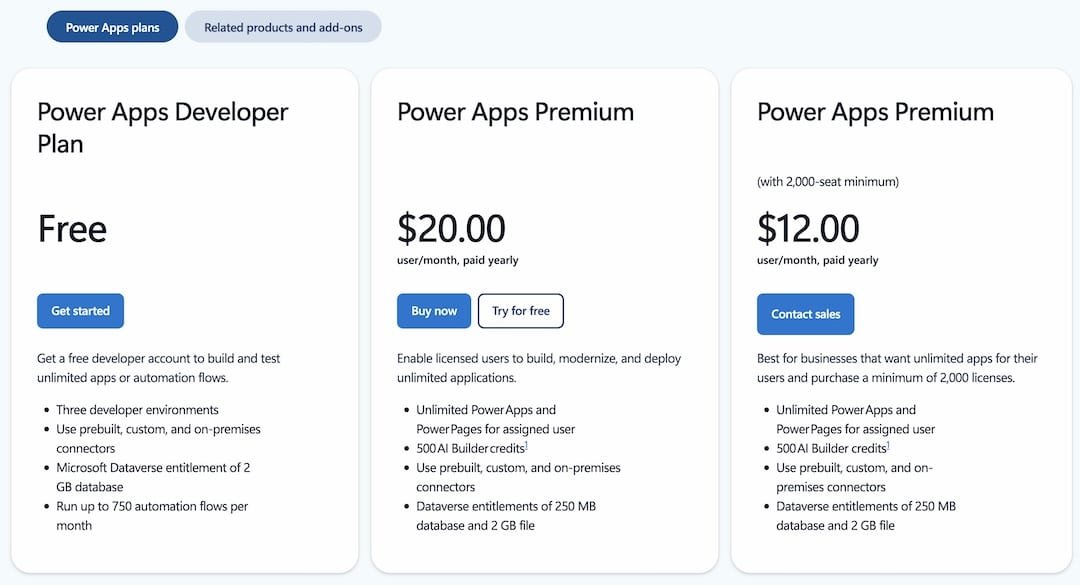
To make this concrete, we often compare the free Developer Plan with a minimal production footprint. The table below is not official pricing guidance, but an illustration based on the cost-calculator concept and the idea of moving from zero-cost development to paid production use.
| Scenario | Environment Type | Typical Monthly Platform Cost* | Use Case |
|---|---|---|---|
| Individual developer prototyping | Developer Plan | $0.00 | Learning, prototyping, Tests |
| Small internal app for 10 users | Production | Varies by license model; estimated via calculator | Task tracking, approvals, basic CRUD apps |
| Enterprise-grade solution | Production + Dataverse + AI | Higher due to Dataverse capacity and automation | Company-wide workflows, complex data models |
*Illustrative only; always verify up-to-date pricing in official Microsoft documentation and your tenant.
5. Data and CSV Management in a Power Apps Developer Plan
In any developer environment, data seeding and export can consume a lot of time if you handle everything manually. For Power Apps developers, working with CSV data is a common need: importing sample records, preparing test cases, or exporting app collections for further analysis in Excel or other tools. We encourage teams to standardize how they manage this in their developer plan.
One effective approach is to use a dedicated CSV ⇄ collection tool so developers can move data in and out of Power Apps quickly. For example, with the free Convert CSV to Power Apps collection utility, our teams paste CSV content, receive ready-to-use ClearCollect() expressions, and can also reverse the process to export collections to CSV when they need snapshots of test data.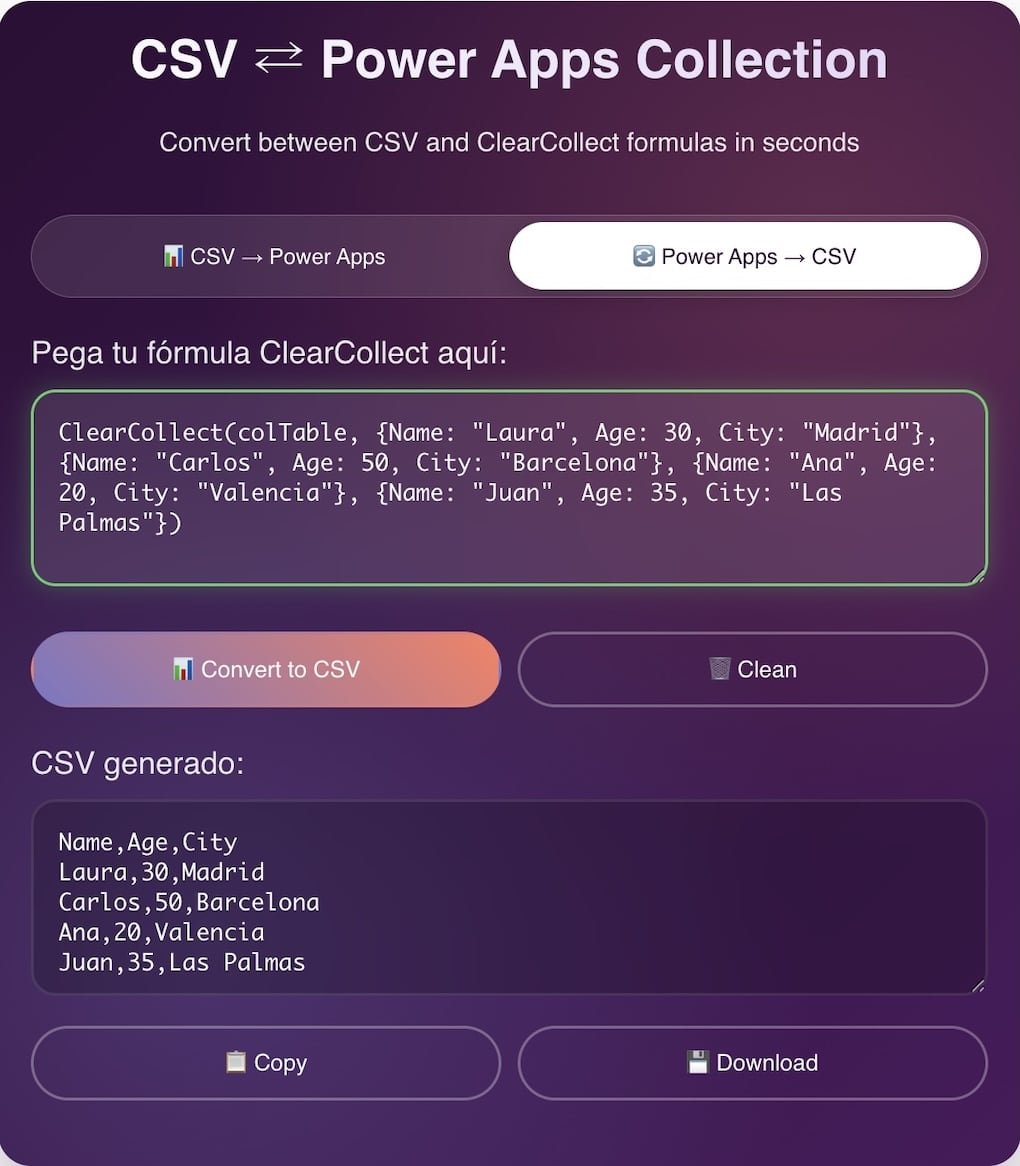
Sample Data Flow: From CSV to Developer Plan
- Prepare or receive a CSV file with the records you need for testing.
- Use a CSV ⇄ Power Apps tool to convert that file into
ClearCollect()code. - Paste the generated code into your Developer Plan canvas app to seed a collection.
- Bind galleries and forms to the collection while you iterate on UX and logic.
- When the design stabilizes, move the schema to Dataverse and rebind the app.
6. Working with JSON, APIs, and Custom Connectors in Your Developer Plan
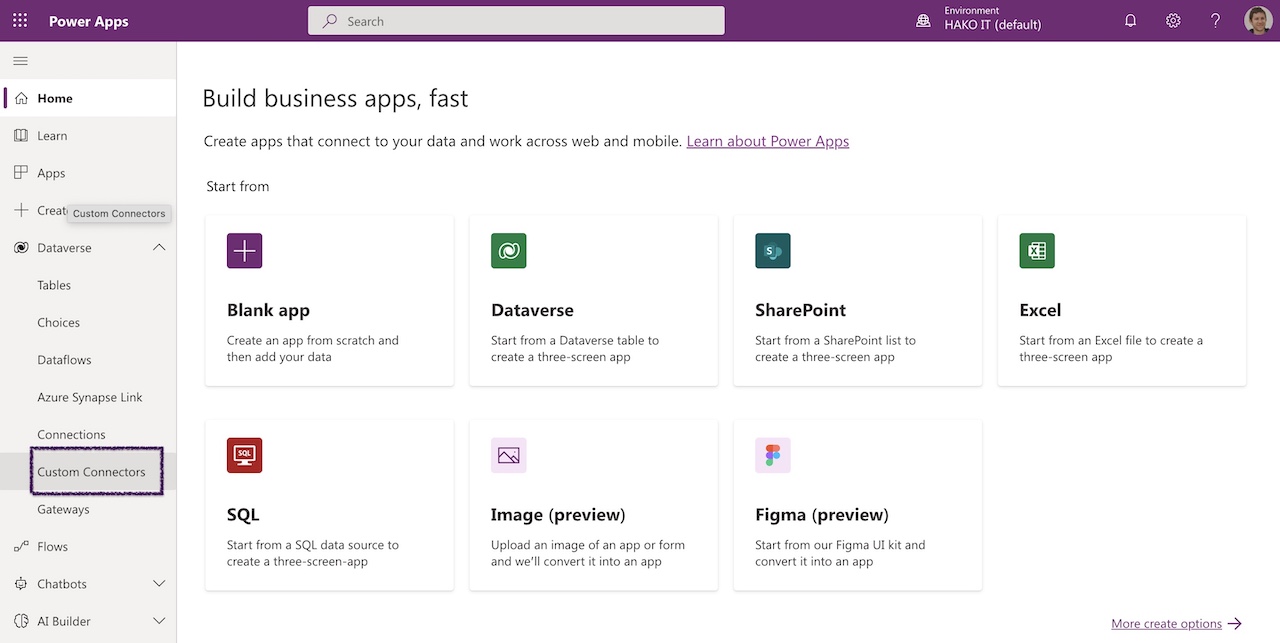
Most serious Power Apps solutions depend on external services—line-of-business APIs, SaaS apps, or custom microservices. Your Developer Plan is the ideal place to experiment with these integrations before they ever interact with production data. We typically start by exploring the API in isolation, validating JSON payloads, and then wrapping the service as a custom connector.
When handling JSON, format and validation errors can slow you down. That is why we recommend using a modern JSON formatter during development. A tool like the Modern Pretty JSON Formatter & Highlighter helps our developers clean up payloads, spot structure issues, and validate responses before configuring the custom connector in Power Apps.

Building and Testing Custom Connectors
In a typical Developer Plan workflow, we follow a structured process for custom connectors:
- Design and test the REST API independently.
- Format and validate JSON requests and responses using a formatter tool.
- Create a custom connector from blank in Power Apps or Power Automate.
- Define operations, parameters, and security configuration.
- Test operations inside the connector designer before using them in apps.
Your Developer Plan gives you the room to iterate on these connectors until they are stable. Only then do we promote them into shared, managed environments.
7. Common Power Apps Mistakes in Developer Environments
A free Developer Plan sometimes encourages “quick and dirty” experimentation, which is fine for learning but risky when patterns leak into production. We frequently see recurring issues: ignoring delegation limits, choosing inappropriate data sources during the prototype, or neglecting error handling and security altogether. These habits can make later migrations more painful.
We recommend treating the Developer Plan as a professional training ground where best practices are applied from day one. For example, follow guidance like the one in 10 Common Power Apps Mistakes & How to Avoid Them, which covers planning, delegation, UI/UX, performance, and security. When developers build discipline in their own environments, production apps benefit later.
Top Pitfalls to Avoid in a Developer Plan
- Using Excel as a permanent data source instead of planning Dataverse tables from the start.
- Ignoring delegation warnings, which leads to apps that work in dev but fail with large datasets.
- Hardcoding values and URLs that make promotion to higher environments harder.
- Lack of naming conventions, resulting in unreadable formulas and difficult maintenance.

8. Environment Strategy: Structuring Your Internal “Developer Plan”
Beyond the Microsoft-provided Developer Plan, we encourage clients to define an internal developer strategy that includes environment topology, roles, and promotion paths. Typically, each developer gets a personal Developer Plan environment, and the organization provides shared Dev, Test, and Production environments with clear governance.
In that model, the Developer Plan is where ideas start, not where they end. We use ALM (Application Lifecycle Management) processes or solution exports/imports to move components from personal environments into controlled shared environments. This separation helps IT maintain security, compliance, and lifecycle control while preserving the freedom developers need to experiment.
Simple Environment Strategy Table
| Environment | Owner | Purpose | Typical Users |
|---|---|---|---|
| Developer Plan (personal) | Individual maker | Experimentation, learning, rapid prototyping | 1 developer |
| Shared Dev | IT / Center of Excellence | Team development, integration testing | Multiple developers |
| Test / UAT | IT | User acceptance testing with near-production data | Test users, key stakeholders |
| Production | IT | Live business operations | All end users |
9. Visualizing Your Developer Plan: Bar Chart & Infographic
When we communicate the value of a Power Apps developer plan to business and IT leaders, visual comparisons help. Below is a simple HTML bar chart-style representation comparing relative “capacity emphasis” for different aspects of the Developer Plan versus a notional production setup. These are conceptual, not numeric measures.
Bar Chart: Developer Plan vs. Production Focus
| Dimension | Developer Plan (relative) | Production (relative) |
|---|---|---|
| Freedom to Experiment |
|
|
| Governance & Compliance |
|
|
| User Scale |
|
|
| Cost Exposure |
|
|
For stakeholders who prefer an infographic-style overview, we often summarize the developer plan in three blocks: Build (apps, flows, data models), Test (with sample data, CSV tools, and mock APIs), and Promote (to governed environments). The images below illustrate some of the building blocks we use when explaining this lifecycle.
10. Comparison Table: Power Apps Developer Plan vs. Production Use
To help you decide how to position the Power Apps Developer Plan in your organization, the table below compares it with a typical production setup across key dimensions. We use this type of analysis when designing adoption roadmaps for clients.
| Aspect | Power Apps Developer Plan | Production Power Apps |
|---|---|---|
| Cost | Free to sign up for individual developers. | License-based, estimated via a cost calculator. |
| Intended Use | Development, learning, proof-of-concept builds. | Live business processes and end-user workloads. |
| Users | Single developer per environment. | Many internal and external users. |
| Dataverse Storage | 2 GB database entitlement; suitable for prototypes. | Scalable with additional capacity purchases. |
| Automation Capacity | Flow runs capped but adequate for testing. | Sized for production workloads and SLAs. |
| Governance | Looser, but should still follow internal standards. | Tightly governed by IT and security teams. |
Key Takeaways Table: Designing Your Own Power Apps Developer Plan
To close, we summarize the core design decisions we usually discuss with clients when they define their internal Power Apps developer program around the official Developer Plan.
| Decision Area | Recommendation | Why It Matters |
|---|---|---|
| Developer Eligibility | Offer the Developer Plan to motivated makers with a work/school account. | Ensures licensing compliance and aligns with Microsoft’s requirements. |
| Training & Onboarding | Pair the Developer Plan with structured learning paths and starter templates. | Developers become productive faster and avoid bad habits. |
| Data Management | Standardize use of CSV and JSON tools during prototyping. | Improves repeatability of tests and simplifies migration to Dataverse. |
| Integration Strategy | Develop and test custom connectors only in developer environments first. | Reduces risk to live systems and enforces clean API contracts. |
| Environment Promotion | Define a clear path from Developer Plan → Dev → Test → Production. | Prevents “shadow IT” and keeps apps maintainable over time. |
| Cost Visibility | Estimate production costs early using a Power Platform calculator. | Avoids surprises when successful prototypes scale to real users. |
Frequently Asked Questions (FAQ): Power Apps Developer Plan
What is the Power Apps Developer Plan?
The Power Apps Developer Plan is a free Microsoft plan that lets users build and test Power Apps, Power Automate flows, and Dataverse solutions in a dedicated development environment for learning and prototyping purposes only.
Is the Power Apps Developer Plan really free?
Yes, it’s completely free and does not require a credit card, but it is limited to development and testing and cannot be used for production or business workloads.
Who should use the Power Apps Developer Plan?
It’s ideal for developers, students, consultants, and anyone who wants to learn or experiment with Power Apps without affecting a live or production environment.
What’s included in the Power Apps Developer Plan?
The plan includes a developer environment with access to Power Apps, Power Automate, Microsoft Dataverse, and standard connectors, but excludes premium connectors and production deployment.
Can I deploy apps to production with the Developer Plan?
No, apps and flows created with the Developer Plan cannot be used in production or shared for business use; a paid license is required for production deployment.
Does the Developer Plan include Microsoft Dataverse?
Yes, it includes Dataverse for creating tables, relationships, and model-driven apps specifically for development and testing.
How long does the Power Apps Developer Plan last?
The plan is renewable as long as the environment remains active, though Microsoft may remove inactive environments over time.
Can I use premium connectors with the Developer Plan?
No, premium connectors are not included, and testing them requires a paid Power Apps license.
Can I share apps with other users?
Sharing is limited, as the Developer Plan is intended for individual development rather than collaboration or end-user access.
How is the Developer Plan different from a Power Apps trial?
The Developer Plan is designed for ongoing development and learning, while trials are time-limited and closer to a full paid experience.
How do I sign up for the Power Apps Developer Plan?
You can sign up using a Microsoft account on the Power Apps website, which automatically creates a dedicated developer environment.
Is the Power Apps Developer Plan suitable for beginners?
Yes, it’s one of the best options for beginners to learn Power Apps and Power Automate safely without licensing costs.
Conclusion
The Power Apps Developer Plan is more than a free perk; it is a strategic tool for building a sustainable low-code capability inside your organization. Used well, it provides safe, feature-rich environments where developers and advanced business users can practice, prototype, and refine solutions long before they reach production.
Our experience shows that the strongest results come when you pair the Developer Plan with clear governance, cost planning, and the right supporting tools—CSV/Power Apps Collection utilities, custom connector patterns, and documented best practices. If you structure your own internal “developer plan” around these principles, you gain a disciplined yet flexible path from individual experimentation to reliable, production-grade Power Apps solutions.
Free Power Apps Tutorials and Guides:
Do you want to continue learning about Power Apps? Below is a simple and easy beginner’s tutorial for creating an application with a SharePoint or Excel list:
Getting Started with Power Apps | Complete Step-by-Step Guide
20 Power Apps Examples 📱 and Use Cases
How to Use Power Apps for Your Projects | Beginner’s Guide
Create an APP with EXCEL in 5 Steps | Microsoft Power Apps
👉 Contact us for more information or schedule a meeting.