
Introduction to Power Apps Best Practices
Power Apps has changed how organizations build business applications. Instead of long development cycles, teams can now create secure, scalable apps in days. But speed without structure can cause trouble. That’s where power apps best practices come in.
At Hako IT, a boutique software company specializing in Microsoft technologies like Power Apps, Power BI, and modern websites, we’ve seen both sides. Well-designed Power Apps save time and money. Poorly designed ones become slow, hard to maintain, and risky.
This guide brings together proven Power Apps best practices from real-world projects. You’ll learn how to plan, design, secure, and scale your apps the right way. Whether you’re new to Power Apps or already building solutions, these tips will help you work smarter and avoid common pitfalls.
Key Takeaways
| Question | Actionable Answer & Resource |
|---|---|
| What are the most important Power Apps best practices for 2026? | Focus on security (MFA, least privilege), performance (clean data sources, delegated queries), and governance (environments, DLP). Our detailed checklist in Power Apps Security Best Practices covers the core controls we recommend. |
| How should we start with Power Apps without creating chaos? | Begin with a structured learning path, a single governed environment, and a pilot use case with limited scope. The guide Getting Started with Power Apps shows how we introduce app types, data, and sharing step by step. |
| What mistakes do beginners make most often? | The most common issues are abusing Excel as a database, skipping security design, and building unmaintainable formulas. See our breakdown in 10 Common Power Apps Mistakes & How to Avoid Them for specific anti-patterns and fixes. |
| How does Power Apps fit with the rest of Power Platform? | Power Apps is the app layer alongside Power Automate, Power BI, and Power Pages. A clear platform view helps you choose the right tool for each job, as explained in What is Power Platform?. |
| When should we use Power Apps vs Power Automate? | Use Power Apps for interfaces and data entry; use Power Automate for background workflows and integration. For example scenarios and pricing comparisons, see Power Apps vs Power Automate. |
| Is Excel a good backend for production apps? | Excel is fine for prototypes and training, but Dataverse or SQL is better for production scenarios. Our 5-step walk-through in Create an App with Excel in 5 Steps includes specific best practices and limitations. |
| How can we safely adopt AI (Copilot) in Power Apps? | Use Copilot to speed up schema and screen design, but always review security and logic manually. The Power Apps Copilot AI Tutorial shows the prompts and review steps we recommend. |
Foundations: What “Best Practices” Really Mean in Power Apps
Power Apps best practices are about repeatable patterns that keep apps secure, performant, and maintainable as your maker community grows. We treat them as guardrails: they keep rapid development productive instead of chaotic.
We always start by aligning app design with the broader Power Platform. Understanding where Power Apps sits among Power BI, Power Automate, and Power Pages—as outlined in What is Power Platform?—helps us decide when to build an app, when to trigger a flow, and when to report with analytics.

We also look early at licensing so stakeholders understand the cost of scaling. For instance, Power Apps per-app plans start around $5 per user/app/month, while per-user plans run about $20 per user/month. Clarifying this upfront avoids resistance later when successful pilot apps expand. Microsoft Pricing details
Best-for Use: When Power Apps Is the Right Choice
Power Apps is best when you need line-of-business apps that sit close to Microsoft 365, Dynamics 365, or Dataverse. Patterns we follow:
- Use canvas apps for highly tailored user experiences and mobile data capture.
- Use model-driven apps for data-centric scenarios with complex relationships and security.
- Combine with Power Automate when your app triggers background processes or approvals.
Understanding Power Apps Architecture
Before building anything, it’s important to understand how Power Apps works.
Power Apps is part of the Microsoft Power Platform. It lets you create apps using three main approaches:
- Canvas apps — Pixel-perfect apps with full control over layout and design
- Model-driven apps — Data-driven apps built on Dataverse
- Dataverse — A secure, scalable data platform
Each option serves a different purpose. Canvas apps are great for tailored user experiences. Model-driven apps work best for complex data relationships and business processes.
A key power apps best practice is choosing the right architecture early. Changing later can be costly and frustrating.
Planning Before You Build
Good apps start with good planning. Skipping this step is one of the biggest mistakes teams make.
Defining Business Requirements
Start by asking simple questions:
- What problem are we solving?
- Who will use the app?
- What success looks like?
Write requirements in plain language. Involve business users early. At Hako IT, we always run short workshops to align stakeholders before development begins.
Choosing the Right App Type
Not every app should be a canvas app. If your app is data-heavy, uses complex relationships, or needs strong security, a model-driven app may be better.
Planning is a core part of power apps best practices because it prevents rework and wasted effort.
1. Security Best Practices: Protecting Data from Day One
Security is non-negotiable. We base our approach on the detailed checklist in Power Apps Security Best Practices: A Comprehensive Guide, and we apply these principles from the very first prototype.
At a minimum, we:
- Enforce Multi-Factor Authentication (MFA) for all makers and users.
- Use role-based access control (RBAC) with the least privilege principle.
- Configure Data Loss Prevention (DLP) policies to control connector usage.
- Segment apps into separate environments (Dev / Test / Prod).

We also define incident response and backup and recovery practices alongside our app lifecycle. For Dataverse-backed apps, that includes configuring environment-level backup policies and periodically testing restore processes, not just assuming they work.
Best-for Security: Dataverse and Managed Environments
When security and compliance matter, we prefer:
- Dataverse over file-based stores because of its granular security model and auditing.
- Managed environments to enforce maker guardrails and monitoring centrally.
These patterns scale particularly well in organizations where hundreds or thousands of users depend on Power Apps daily.

2. Governance & Environments: Keeping Growth Under Control
Without governance, Power Apps sprawl quickly. Our best practices focus on structuring environments, roles, and policies so growth is intentional.
We typically define:
- At least three environments: Development, Test/UAT, and Production.
- Clear owner and maker roles in each environment, separated from end-user roles.
- DLP policies that differentiate between business and non-business connectors.

We also document and regularly review security and governance policies as living assets. That means tracking who can create apps, what data they can use, and how apps move from dev to production.
Best-for Chart: Environment Roles and Responsibilities (Bar Chart)
Below is a simple bar chart to show a typical distribution of responsibilities across roles in a Power Apps Center of Excellence. Height is represented proportionally via inline styles:
Governance 90%
Design 70%
Patterns 55%
Build 35%
3. Getting Started Right: Design and Build Best Practices
Many long-term problems begin in the first week of an app’s life. We rely on the process described in Getting Started with Power Apps – Your Complete Step-By-Step Guide to keep early builds aligned with best practices.
We encourage new makers to:
- Start with a clear business scenario and success metrics.
- Choose the right app type (canvas, model-driven) before opening Power Apps Studio.
- Map data sources and security requirements before building screens.

We treat Power Apps Studio like any other development environment: we use source control (via solutions and export), naming standards for controls and variables, and reusable components instead of copy–paste.
UI/UX Best Practices in Power Apps
Good design reduces training and support effort. Our go-to patterns:
- Use consistent themes, colors, fonts, and spacing across screens. Follow your company’s branding guidelines. Power Apps themes make this easier.
- Limit data on each screen; prefer progressive disclosure over clutter.
- Use meaningful error messages and confirmation dialogs.
Consistent Layout and Branding: Simple layouts work best. Avoid clutter. Users should know what to do within seconds.
Accessibility and Usability
Accessibility isn’t optional. Use readable fonts, good contrast, and proper labels. Design for mobile first, even if users are on desktop.
These design-focused power apps best practices improve adoption and satisfaction.
4. Data Sources & Excel: When It’s Best and When It Isn’t
Using Excel as a data source is a frequent starting point, and the tutorial Create an App with Excel in 5 Steps shows how quickly you can generate a functional app. Our best practice is to treat this as a prototype pattern, not a production standard.
Excel works best when:
- You are running a short-term proof of concept.
- The user count is small and concurrency is low.
- The data does not hold sensitive or regulated information.

For anything long-term, we recommend migrating to Dataverse or SQL. These backends support:
- Better concurrency and scalability.
- Row-level security and field-level permissions.
- Richer relationships, views, and business rules.
Comparison Table: Excel vs Dataverse for Power Apps
| Criteria | Excel as Data Source | Dataverse |
|---|---|---|
| Best for | Prototypes, training, small internal tools | Production apps, enterprise scenarios |
| Security | File-level control, limited auditing | Row/field security, auditing, compliance |
| Scalability | Limited concurrency and row counts | Designed for large datasets and users |
| Relationships | Manual; prone to errors | First-class relationships and lookups |
| Maintenance | Risk of breaking changes from manual edits | Structured schemas and managed solutions |

5. Performance & Troubleshooting: Building Fast, Fixing Smart
Performance issues are often the result of ignoring early warnings. We follow a “measure early” principle, leveraging the App checker and Monitor tools extensively, as detailed in the error-solving tips guide.
Key performance best practices:
- Use delegable queries and limit non-delegable operations.
- Cache reference data with
ClearCollectwhen appropriate. - Minimize OnVisible complexity and data calls per screen.

For troubleshooting, we:
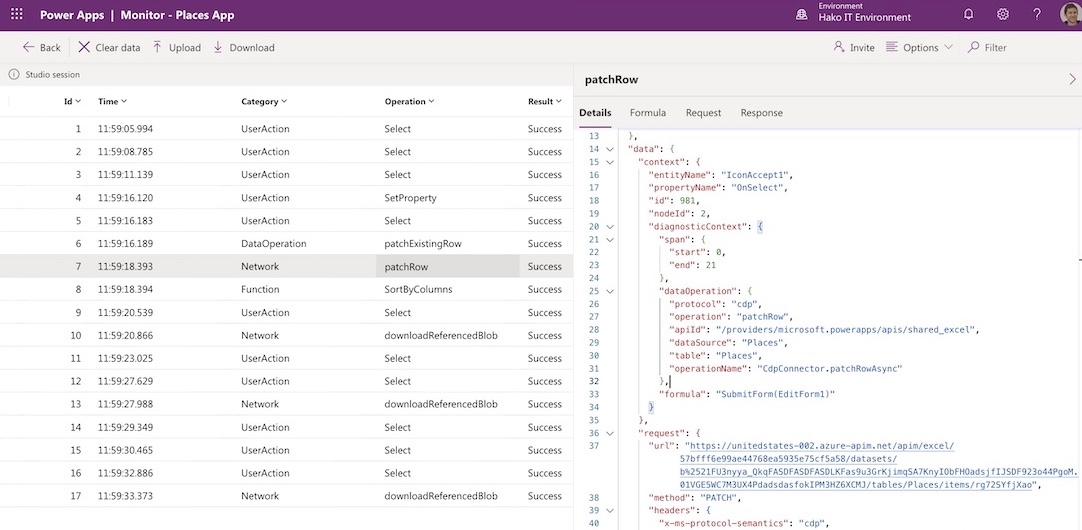
- Use Monitor to inspect network calls, errors, and performance.
- Employ custom error handling with user-friendly messages.
- Correlate app telemetry with Application Insights in Azure when needed.
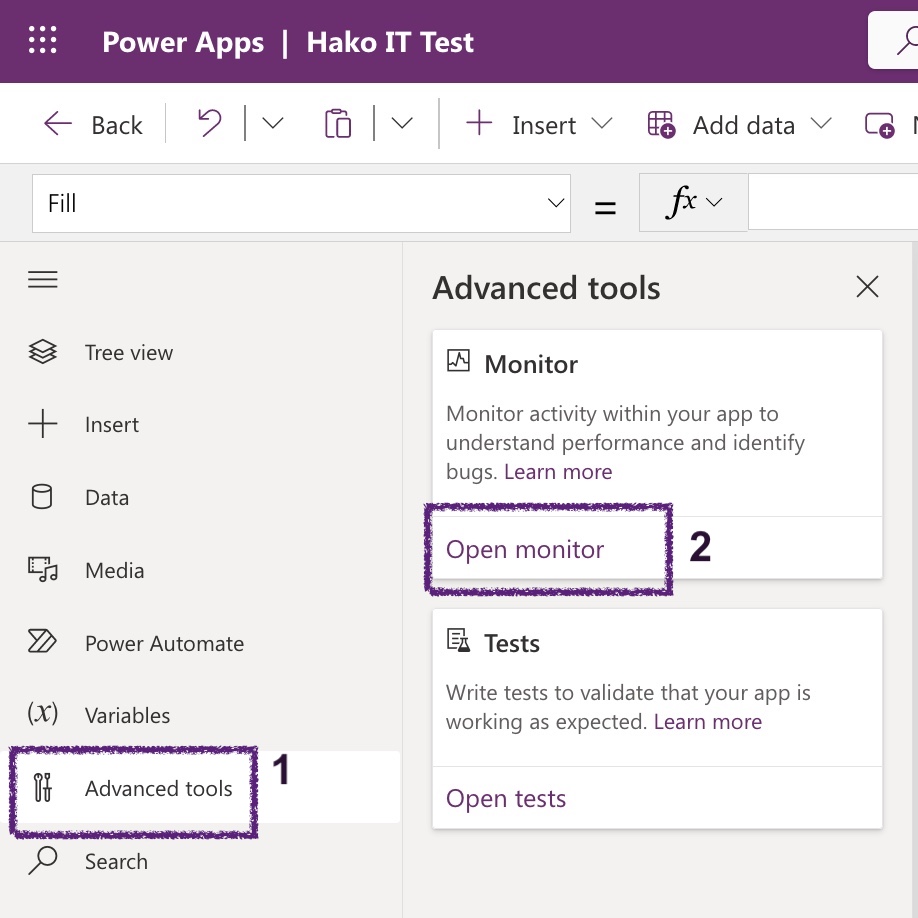
Best-for Diagram: Troubleshooting Flow (Infographic-style Layout)
Below is a simple text-based infographic-style flow to guide troubleshooting decisions:
- Identify Symptom – Slow screen? Errors on submit? Data mismatch?
- Run App Checker – Fix formula and accessibility warnings first.
- Use Monitor – Track network calls, failures, and long operations.
- Check Data Source – Delegation limits? Throttling? Schema issues?
- Optimize Logic – Simplify formulas, reduce OnStart/OnVisible load.
- Retest & Log – Document the fix for future patterns and training.
6. Avoiding Common Mistakes: Lessons from Real Projects
We see the same mistakes repeatedly, many of which are summarized in 10 Common Power Apps Mistakes & How to Avoid Them. Recognizing them early is a major best practice on its own.
Frequent pitfalls include:
- Building everything in a single app instead of modular apps.
- Using copy–paste instead of reusable components and galleries.
- Ignoring accessibility (contrast, keyboard navigation, screen readers).
We encourage teams to maintain an internal “anti-patterns” document with examples and better alternatives. Over time this becomes a library of lessons learned that new makers can read before starting their first serious app.
Common Mistakes to Avoid
Avoid these traps:
- Hardcoding values
- Ignoring delegation warnings
- Building everything in one app
- Skipping documentation
Learning from mistakes is part of mastering power apps best practices.
Quick Comparison: Bad vs Good Practices
| Area | Common Bad Practice | Recommended Best Practice |
|---|---|---|
| Naming | Random control names (Button1, Gallery1) | Semantic names (btnSubmitOrder, galOrders) |
| Logic | Long, nested formulas in control properties | Helper functions, variables, and components |
| Security | Sharing apps broadly without reviewing permissions | Role-based sharing aligned to data access |
| Lifecycle | Editing directly in production | Dev → Test → Prod promotion via solutions |
7. Power Apps vs Power Automate: Best-for Scenarios & Pricing
Choosing between Power Apps and Power Automate is a frequent question. In practice, we rarely choose one or the other; we decide which should lead and which should support.
Typical pattern:
- Power Apps handles forms, data entry, and interactive experiences.
- Power Automate handles approvals, notifications, and data synchronization.

From a cost perspective, we compare:
- Power Apps premium: about $20 per user/month.
- Power Automate per user: about $15 per user/month.
We use these prices to design “best-for value” patterns, such as consolidating related functionality into a small number of apps and flows to avoid unnecessary license sprawl.
Best-for Table: When to Lead with Each Tool
| Scenario | Lead with Power Apps | Lead with Power Automate |
|---|---|---|
| Field data capture | Yes – mobile-friendly canvas app | Used for background sync and alerts |
| Document approval workflow | Optional – simple intake form | Yes – approvals, reminders, routing |
| System integration | No – not ideal | Yes – scheduled or event-based flows |
| Complex line-of-business process | Yes – model-driven or rich canvas app | Yes – orchestrating long-running processes |
8. AI & Copilot: Best Practices for GPT-Assisted Power Apps
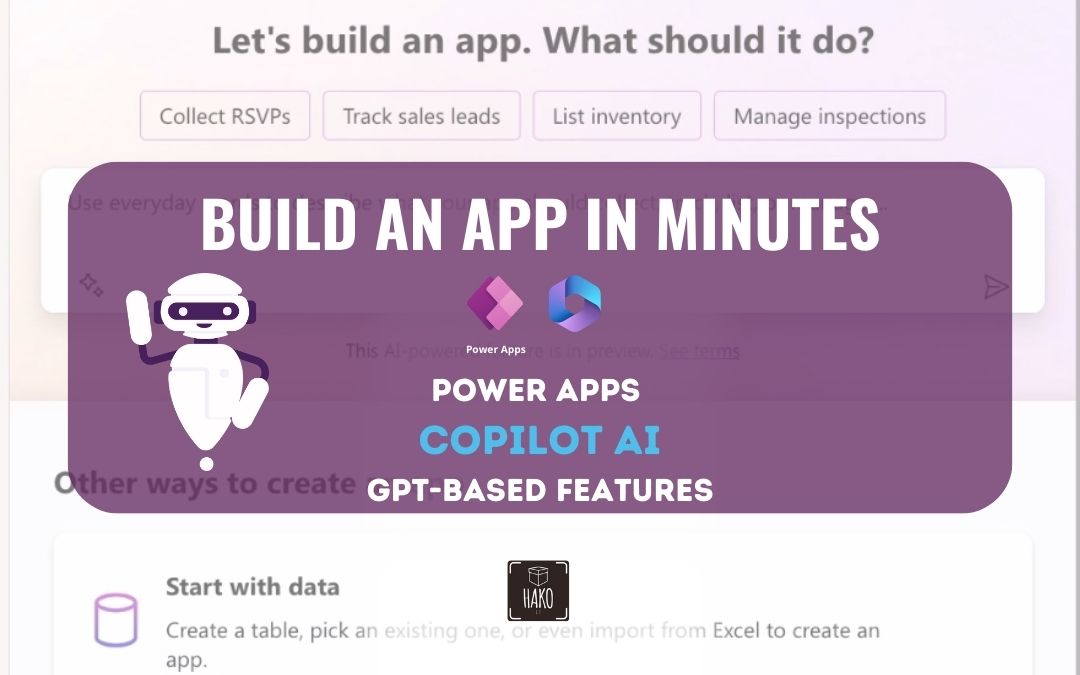
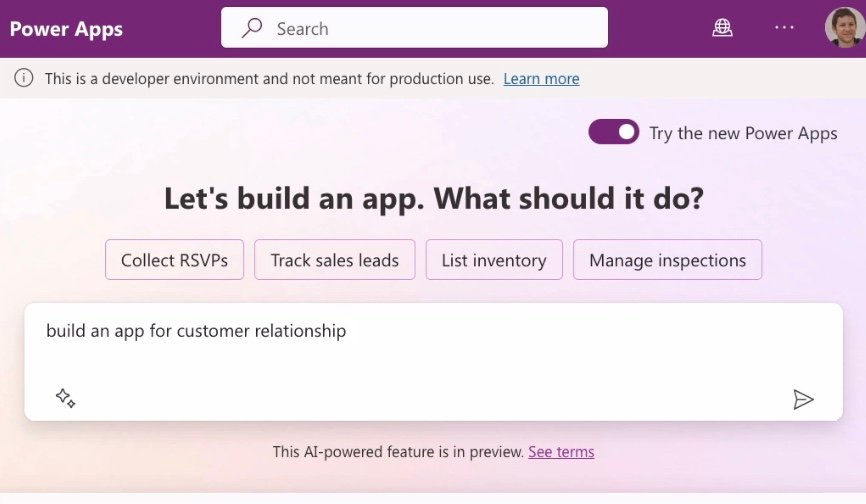
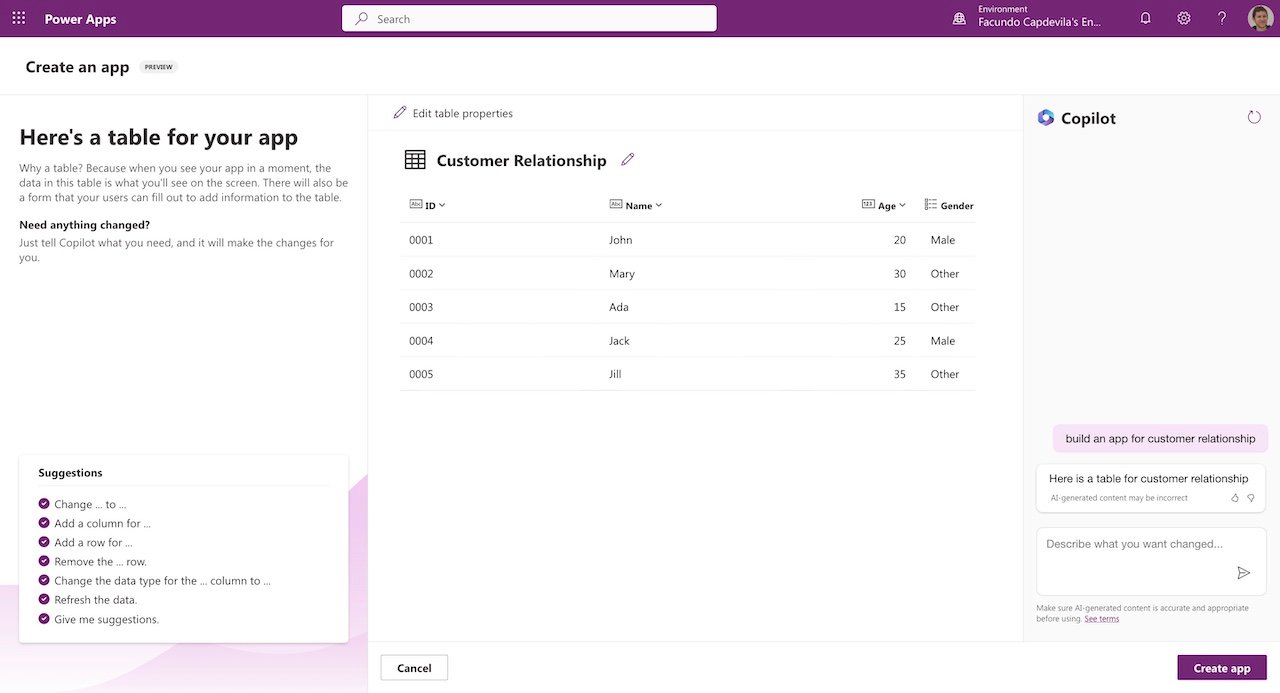
Copilot can drastically speed up app creation when used responsibly. The Power Apps Copilot AI Tutorial demonstrates how natural language prompts can define data tables and generate starter apps.
Our best practices for AI in Power Apps:
- Use Copilot to generate first drafts of tables, forms, and galleries.
- Review and harden security roles, connectors, and data permissions manually.
- Refine prompts iteratively, documenting which prompts produce reliable structures.
Copilot is especially helpful for non-developers who understand the process but not the syntax. We usually pair citizen makers with a more technical reviewer who performs a structured review before the app moves to test or production.
Best-for Use Cases for Copilot
We consider Copilot ideal for:
- Rapid prototyping of new ideas with business stakeholders in live sessions.
- Creating internal tools that follow established data and security patterns.
- Generating starter CRM-style or case management apps backed by Dataverse.
Testing and Quality Assurance
Never skip testing.
- Test with real users
- Cover edge cases
- Validate performance on mobile
Testing ensures your app works in the real world, not just in theory.
9. Rapid App Creation: “30 Seconds” Demos vs. Production Reality
The article How to build an app in 30 Seconds highlights how fast Power Apps can generate a working interface from a data source or template. We use this capability strategically for workshops and stakeholder alignment.
Best practices for ultra-fast app creation:
- Treat 30-second apps as demos to validate requirements, not final solutions.
- Quickly connect to SharePoint or OneDrive lists to show real data in context.
- Immediately follow with a design and security review before scaling usage.

We combine this rapid creation with a structured lifecycle:
- Generate a quick app to align on data and flows.
- Refactor into a governed solution with environments and versioning.
- Harden security, performance, and UX before going live.

10. Monitoring, Auditing & Continuous Improvement
Even well-designed apps require continuous oversight. We use monitoring and auditing to make sure Power Apps stay compliant and useful over time.
Key practices:
- Enable auditing for Dataverse tables where regulatory tracking is needed.
- Use environment-level analytics to monitor app usage and performance.
- Set a cadence for reviewing permissions, sharing, and DLP policies.
We also maintain a feedback loop with end users. Changes are managed through a backlog rather than ad‑hoc edits in production, and we use versioning to roll back quickly if needed.
Best-for Governance Metrics (Key Indicators)
We track a small set of KPIs to judge whether our best practices are working:
- Number of production apps per environment and per business unit.
- Average app load time and error rate.
- Percentage of apps using governed data sources (Dataverse, SQL) vs. ad‑hoc files.
Frequently Asked Questions about Power Apps Best Practices
What are the most important Power Apps best practices for beginners?
Focus on three core areas: proper planning before development, understanding delegation for efficient data handling, and implementing basic error handling. Define clear requirements, learn how your data source handles delegation, and add user-friendly error messages to all data operations.
How can I improve the performance of my existing Power Apps?
Use Power Apps Monitor to identify bottlenecks. Reduce data loaded on startup, implement proper delegation, cache frequently accessed data in collections, minimize nested formulas, and optimize images. Consider migrating from SharePoint to Dataverse for better performance with large datasets.
Should I use Canvas or Model-Driven apps for my project?
Choose canvas apps for complete UI control, mobile-first experiences, and simpler data models. Select model-driven apps for data-intensive applications with complex business logic, sophisticated security needs, and extensive reporting requirements built on Dataverse.
What’s the best way to handle security in Power Apps?
Implement defense-in-depth security: use environment-level DLP policies, manage access through Azure AD security groups, leverage Dataverse security roles and field-level security, and never rely solely on hidden UI elements. Store credentials in Azure Key Vault and use OAuth 2.0 for external integrations.
What are common mistakes that lead to Power Apps failures?
Common pitfalls include ignoring delegation limits, insufficient error handling, poor data modeling, developing in production, neglecting mobile testing, and weak security implementation. Build focused apps instead of monolithic solutions, and follow best practices consistently from the start.
Conclusion
Power Apps best practices are not abstract theory; they are the difference between a handful of disconnected experiments and a portfolio of secure, performant business apps that save thousands of hours. From security and governance to data choices, AI usage, and lifecycle management, each principle in this guide is grounded in what we apply daily with our own clients and solutions.
By starting with a solid governance model, using production-ready data sources, reviewing AI-generated assets, and continuously monitoring apps, your organization can scale Power Apps confidently. As the platform grows and features like Copilot evolve, we keep refining these patterns—but the core idea remains the same: move fast, but do it with guardrails.
Free Power Apps Tutorials and Guides:
Do you want to continue learning about Power Apps? Below is a simple and easy beginner’s tutorial for creating an application with a SharePoint or Excel list:
How to build an app in 30 Seconds – Sharepoint | Microsoft Power Apps
Create an APP with EXCEL in 5 Steps
Power Apps Copilot AI Tutorial
How to create a Power Apps Custom Connector | API The Complete Guide
👉 Contact us for more information or schedule a meeting.