
Today, with the rapid advances in AI and automation, building solutions that seamlessly connect with different services is essential.
Microsoft Power Apps — a core component of the Power Platform — empowers both developers and business users to build applications using low-code tools. But the true power of Power Apps is unlocked when you use a custom connector to integrate external APIs.
In this comprehensive guide, we’ll walk you through the step-by-step process of creating a custom connector in Power Apps to connect with REST APIs and fully leverage the potential of your applications.
Getting Started Quickly: Many users ask how to create custom connector in powerapps without writing complex code. The good news is that custom connectors in powerapps use a simple visual interface follow this guide and you can create a power apps custom connector by yourself. You do not need to be a pro developer to get started connecting your data.
Summary Custom Connector in Power Apps
| Section | Key Takeaways |
|---|---|
| Definition | Custom connectors act as wrappers for REST APIs, enabling communication between Power Platform and external services lacking native connectors. |
| Prerequisites | Requires Power Apps environment access, API base URL/documentation, and appropriate authentication credentials (API Key, OAuth 2.0, etc.). |
| Configuration | Can be created from scratch by defining general details, security, and API definitions, or imported via OpenAPI/Swagger files. |
| Licensing | Usage of custom connectors requires a Power Apps Premium license (or per-app plan). |
| Testing | Built-in "Test" tab allows developers to create a connection and validate API operations before deployment. |
| Integration | Once created, connectors are added via the "Data" pane in Power Apps Studio and can be used in Galleries or Forms. |
| Maintenance | Best practices include using version control (Git), defining accurate response schemas, and implementing error handling. |
What Is a Custom Connector in Power Apps?
A custom connector lets Power Apps (and Power Automate) communicate with any external API that doesn’t have a built-in Microsoft connector. You define the API’s endpoints, parameters, and authentication once — then anyone in your environment can use it like any standard connector, without writing code.
Use a custom connector when you need to connect to an in-house API, a niche SaaS tool, or any third-party service not covered by the 900+ standard connectors.
Prerequisites
- A Power Apps environment with Environment Maker or Admin access
- The target API’s base URL and at least one endpoint to test
- An OpenAPI (Swagger) 2.0 definition file, or the API documentation to build one manually
- Credentials for the authentication method the API requires (API key, OAuth 2.0 client ID/secret, etc.)
If you want to integrate an API that isn’t natively supported, the solution is to create your own custom connector for Power Apps or Power Automate.
Custom connectors are ideal for businesses that need to connect to proprietary systems, legacy services, or third-party platforms that don’t have an official connector.

Expanding to the Whole Platform
You can use power platform custom connectors for more than just mobile apps. A custom connector in power platform also works with Power Automate workflows and Azure Logic Apps. This helps different parts of your business software talk to each other easily.
Power Platform Connectors: Types and Differences
Before creating your custom connector for Power Automate or Power Apps, it’s important to understand the different categories of connectors available:
Standard Connectors vs. Premium Connectors
| Connector Type | Description | Required License |
|---|---|---|
| Standard Power Apps Connectors | Included with basic licenses | Basic Power Apps |
| Premium Power Apps Connectors | Require a premium license | Power Apps Premium |
| Custom Connectors | User-created connectors | Premium License |
What Are Custom Connectors in Power Apps Used For?
Custom connectors significantly expand what Power Apps can do:
- Proprietary API integration: Connect to your company’s internal systems
- Specific web services: Access APIs that don’t have a native connector
- Advanced customization: Tailor functionality to meet specific business needs
- End-to-end automation: Combine Power Automate and Power Apps for complex workflows
Power Apps Custom Connector / APIs: A Table Guide
Creating custom connectors in PowerApps is vital for unlocking the platform’s full potential, facilitating seamless integration with various data sources.Creating custom connectors in PowerApps is vital for unlocking the platform’s full potential, facilitating seamless integration with various data sources.
| Section | Details |
|---|---|
| Introduction | – Microsoft Power Apps & Creating custom connectors for skill enhancement. |
| Custom Connectors in PowerApps | – Essential for extending app functionality via diverse data source integration. – Act as bridges between PowerApps and external services, enhancing app power. |
| Getting Started | – Prerequisites: Power Apps account, API access, basic REST API knowledge. – Custom connectors act as API wrappers for effective communication. |
| Configuration | – Two scenarios: creating a new custom connector or importing from an existing definition file. – Detailed steps for custom connector creation, covering general details, security, and definition setup. |
| API Information | – Example API (Reqres) used for demonstration with URL and method details. |
| Testing Custom Connector | – Step-by-step process for testing custom connectors in PowerApps. – Involves creating a connection and testing operations. |
| Power Apps Integration | – Steps for integrating custom connectors, with verification in the Data pane. – Creation of a new Gallery for utilizing the Custom Connector and API. |
| Additional Scenarios | – Export/download options for custom connectors. – Importing existing connectors from OpenAPI files. |
Understanding API Connectors
A power apps custom connector rest api allows your app to send and receive data directly from the web/app. When you set up a powerapps api connector, you define exactly how your app communicates with the server. This is great for fetching specific data that standard Microsoft tools might miss.
Step-by-Step: Create a Custom Connector from Scratch
- Open the Power Apps portal → navigate to Data → Custom Connectors → New custom connector → Create from blank.
- General tab: Enter the connector name, description, icon colour, and the API’s host/base URL (e.g.
api.yourservice.com). - Security tab: Select your authentication type — No auth, API key, Basic auth, or OAuth 2.0. For OAuth 2.0, enter the Client ID, Client Secret, Authorization URL, Token URL, and required scopes.
- Definition tab: Add each API endpoint as an Action or Trigger. For each action, define the HTTP method, relative path, query parameters, request headers, and the expected response schema (paste a sample JSON response to generate the schema automatically).
- Test tab: Create a test connection using real credentials and run each action to confirm it returns the expected data. Fix any errors before saving.
- Save and share: Click Create connector. Then go to the connector’s sharing settings and share it with the makers in your environment who need to use it.
How to configure a Custom Connector in Power Apps to call an API?
For adding an API in Power Apps or Power Automate, there are different options available, which can be resume in 2 scenarios:
- Scenario 1: Create a new custom connector from scratch (New).
- Scenario 2: Create a new custom connector from an existing definition file (Import).
Creating a Custom Connector: Prerequisites
Before you embark on your custom connector journey, ensure you have the following in place:
- Microsoft Power Apps: You must have a Power Apps account to create custom connectors.
- Access to the API: You’ll need access to the API of the service or data source you want to connect to.
- Basic knowledge of REST APIs: Familiarize yourself with REST APIs, as custom connectors are typically built around them.
API Information for the PowerApps Custom Connector example
For this example, we will be using a free API called Reqres.
Reqres – is a hosted REST-API ready to respond to your AJAX
URL: https://reqres.in
API Get List of users method: https://reqres.in/api/users

Scenario #1- Start Creating a Custom Connector in Power Apps from Scratch
You will need to:
1- Sign in to Power Apps or Power Automate.
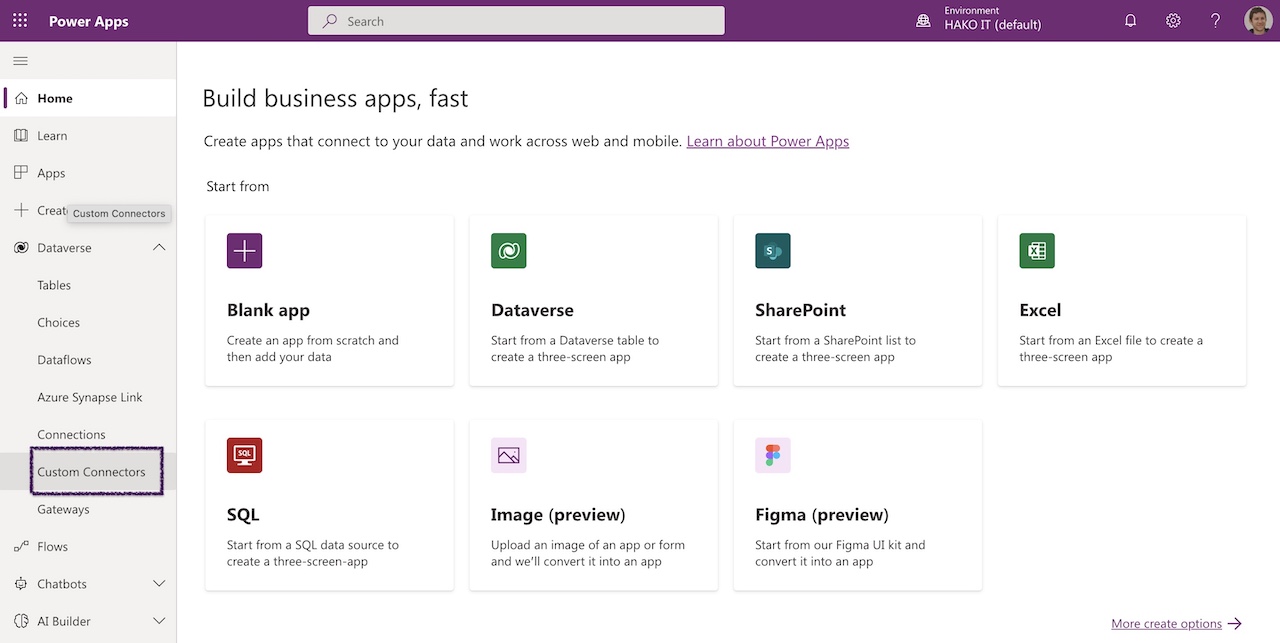
2- Select Custom connectors (Navigation pane on the left).
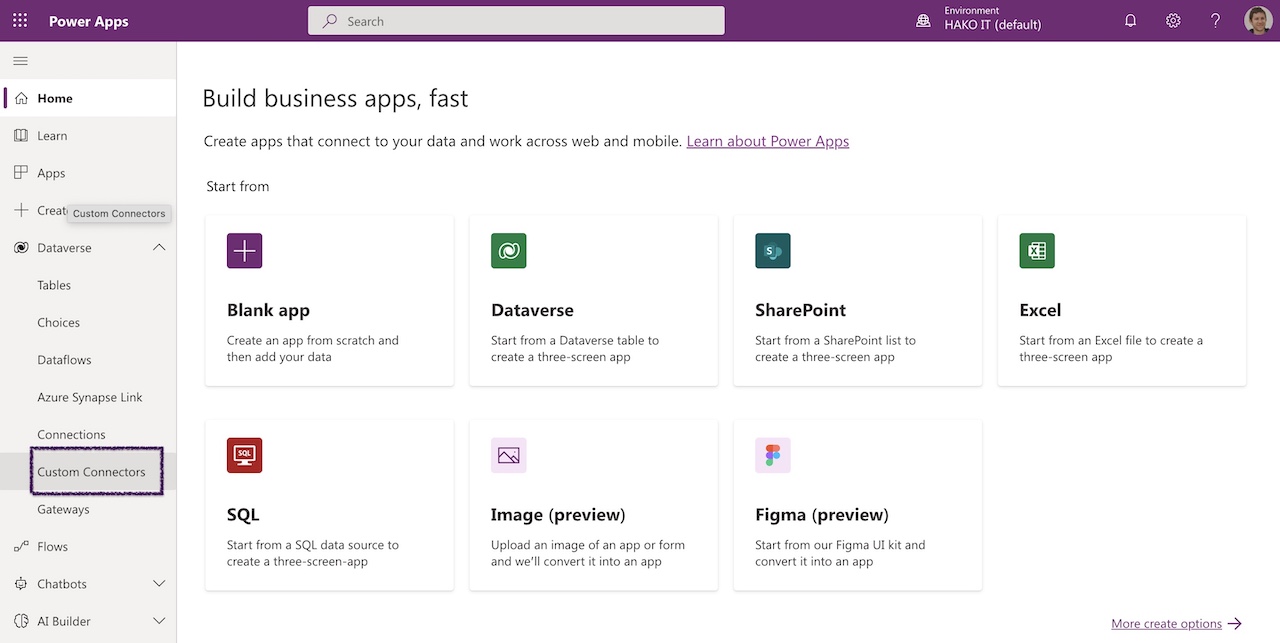
Update: Where is the Custom Connector tab in Power Apps? 👇 On the latest version of Power Apps Studio, the Custom Connector tab is no longer available by default. 👇
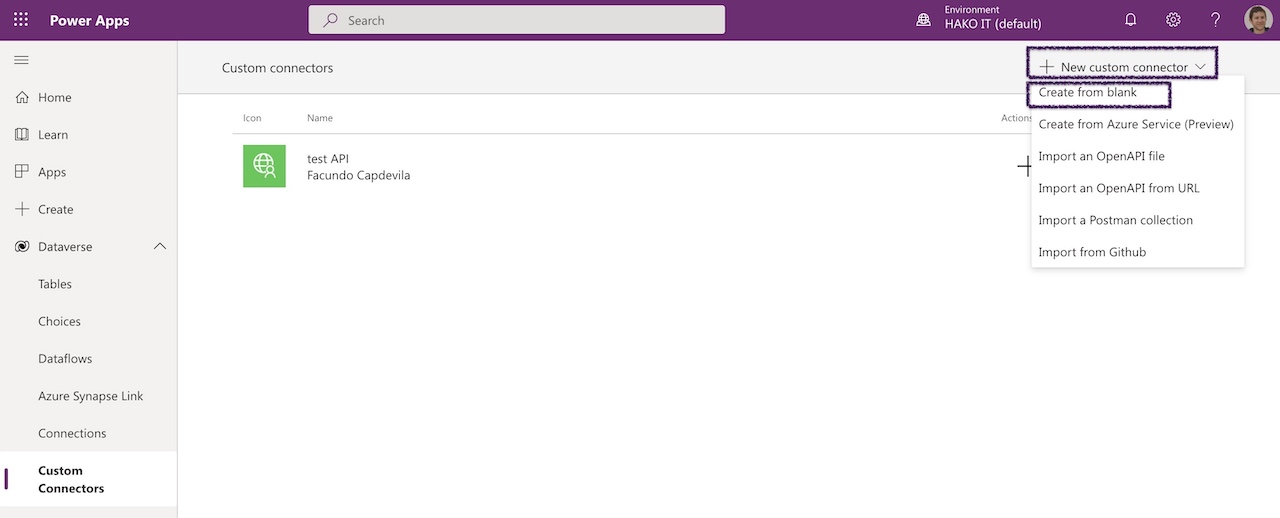
3- Select New custom Connector -> choose to Create from blank.
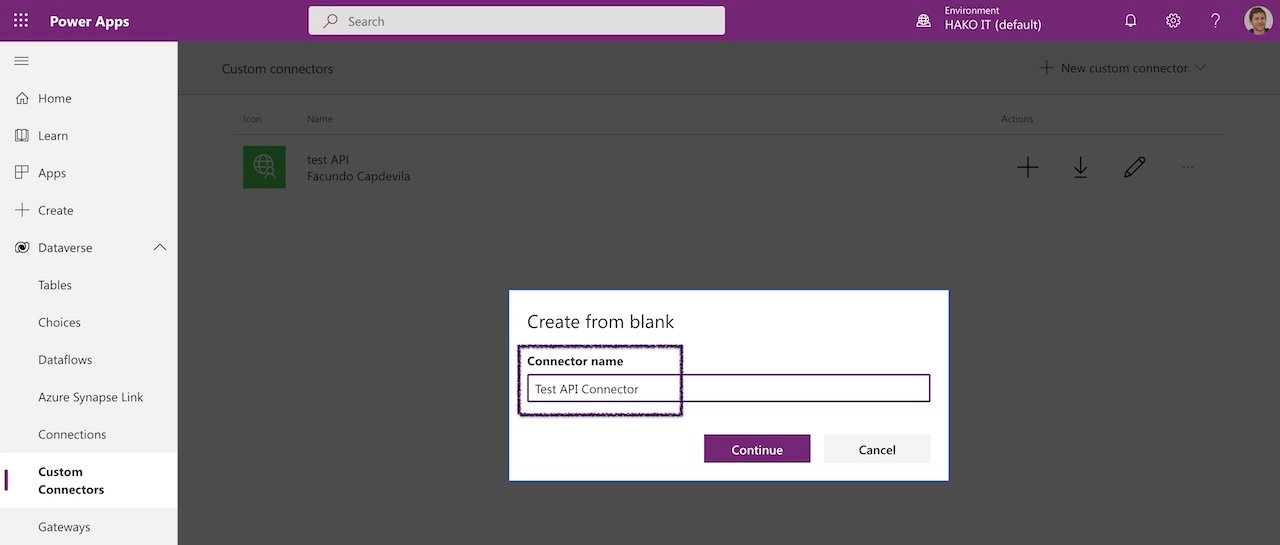
4-Enter a name for the custom connector, then select “Continue“.
Important: Notice that nowadays after creating the Connector, you cannot change the Connector name.
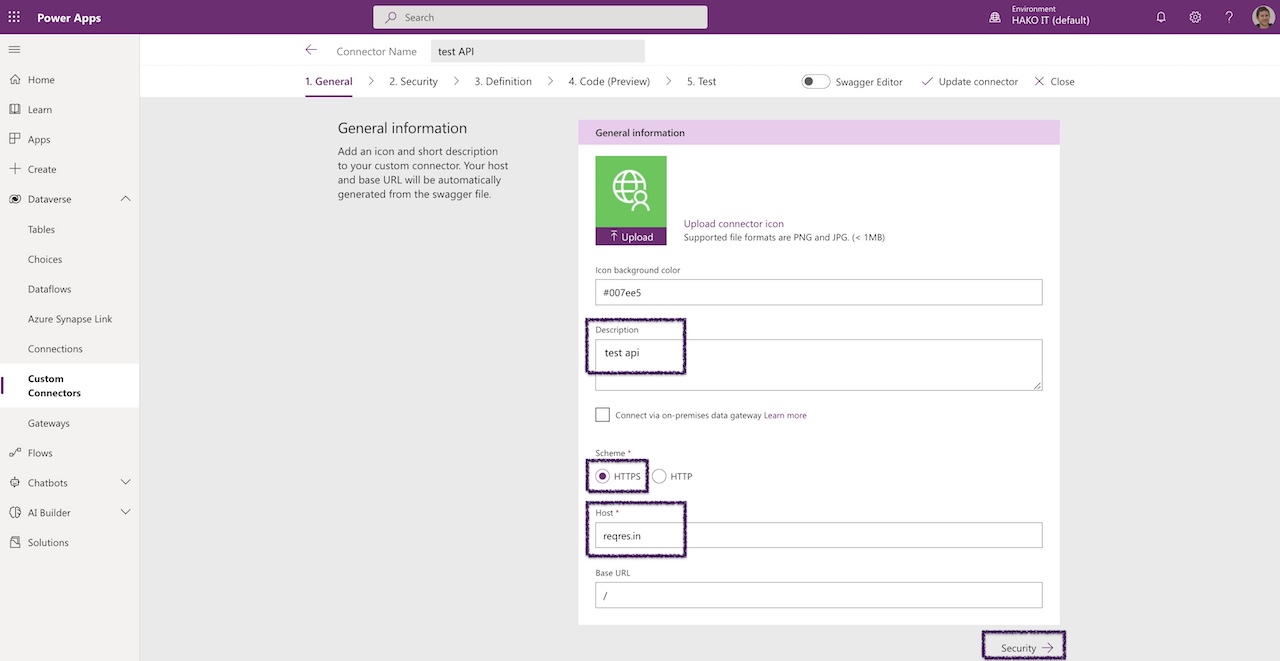
Step 1: General details of the API and Power Apps Connector
On the General tab:
- In the Description field, enter a meaningful value. This description will appear in the custom connector’s details, and it can help others know if the connector could be useful to them. Example with: test api
- Schema: HTTP or HTTPS. Example with: HTTPS
- Update Host to the address for the API Url. The connector uses the API host and the base URL to determine how to call the API. Example with: reqres.in
Note: Not enter the full API URL, as you select first the Schema (HTTP/HTTPS)
Select on Security to continue.

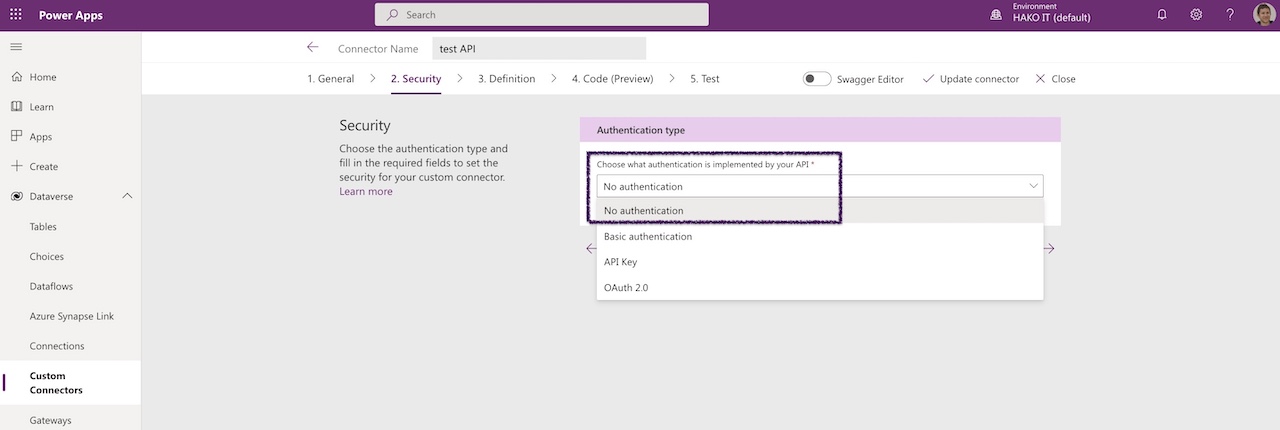
Step 2: Power Apps Custom Connector Security: Choose authentication type
On the Security tab:
2.1- Choose the authentication type. Example with: No Authentication.
Select on Definition to continue.
Authentication Options Explained
- API Key: The simplest option. The key is stored in the connection and passed as a header or query parameter on every request. Best for internal APIs or third-party APIs with simple key-based auth.
- OAuth 2.0: Most secure for user-delegated access. The connector handles the token exchange automatically once configured. Supports Authorization Code flow (user consents on first use) and Client Credentials flow (service-to-service, no user consent).
- Basic Auth: Passes a username and password in the Authorization header. Use only when the API requires it and is only accessible over HTTPS.
Step 3: Custom Connector in Powerapps definition
On the Definition tab:
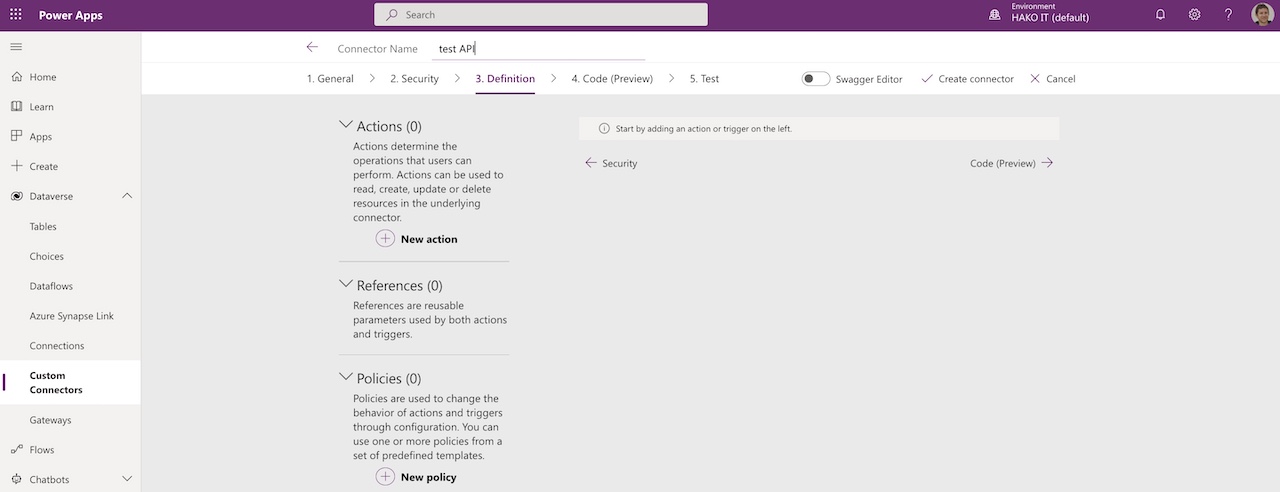
3.1- Create a New Action – Actions > Select New Action

3.2- Complete the Summary / Description / Operation ID for the new action.

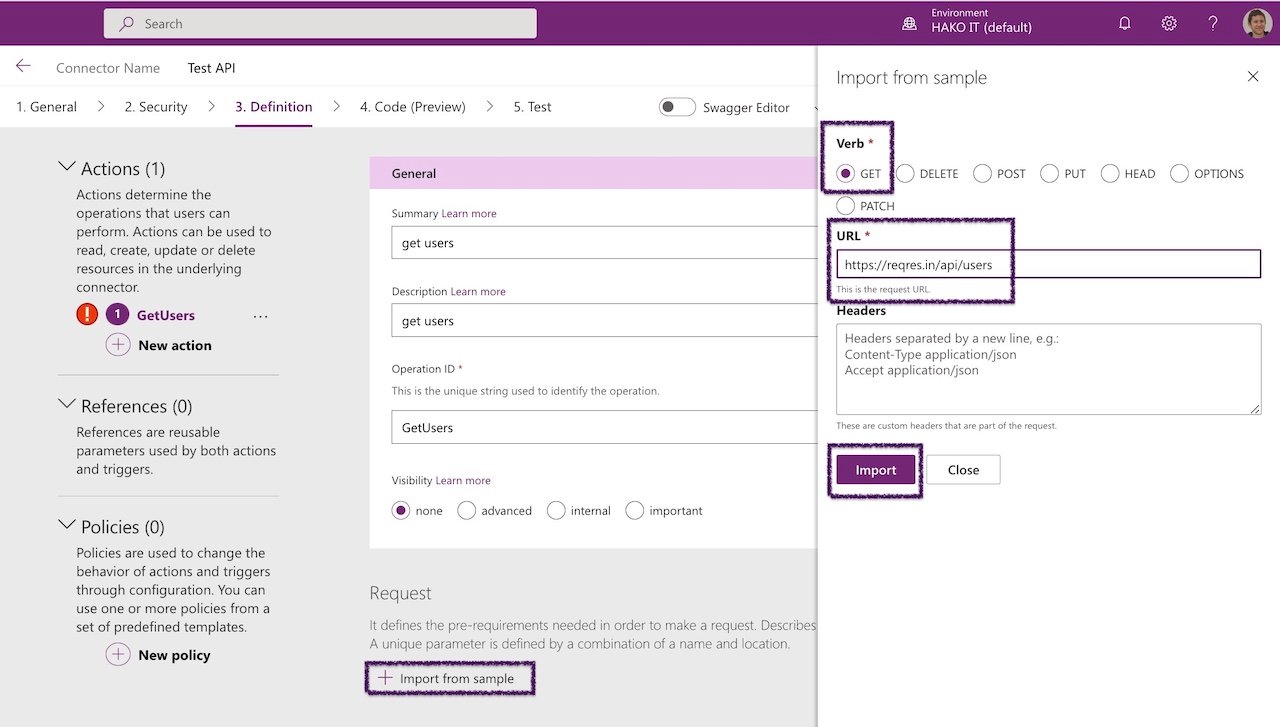
3.3- Request – Import from sample – Get List
Select Import from sample.
Example with:
Verb: GET
URL: https://reqres.in/api/users
Click Import

3.4- Response – Add default response – JSON Get List Response
Select Add default response

3.5- Select Import from sample
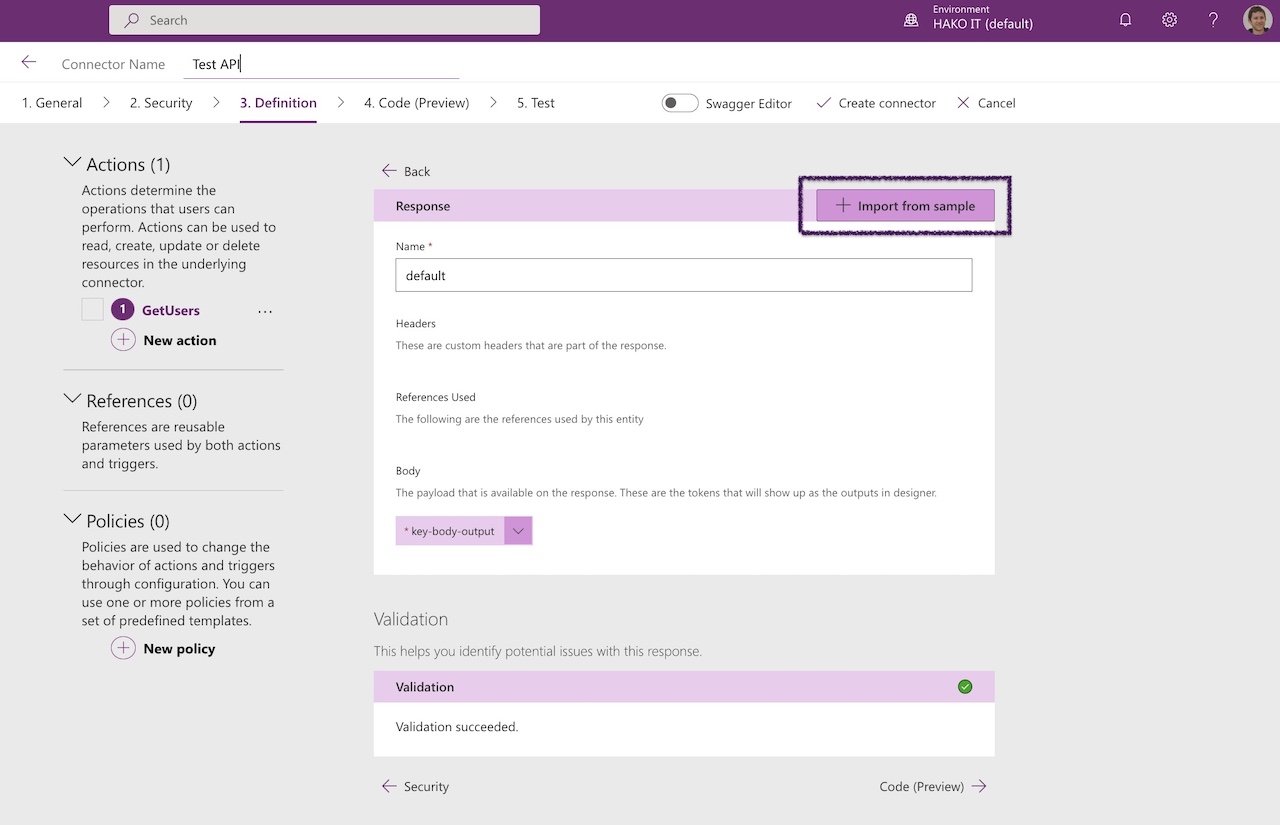
3.6- Copy a RAW JSON response from URL
In example case from the URL: https://reqres.in/api/users

Or Copy an RAW JSON response from Postman:
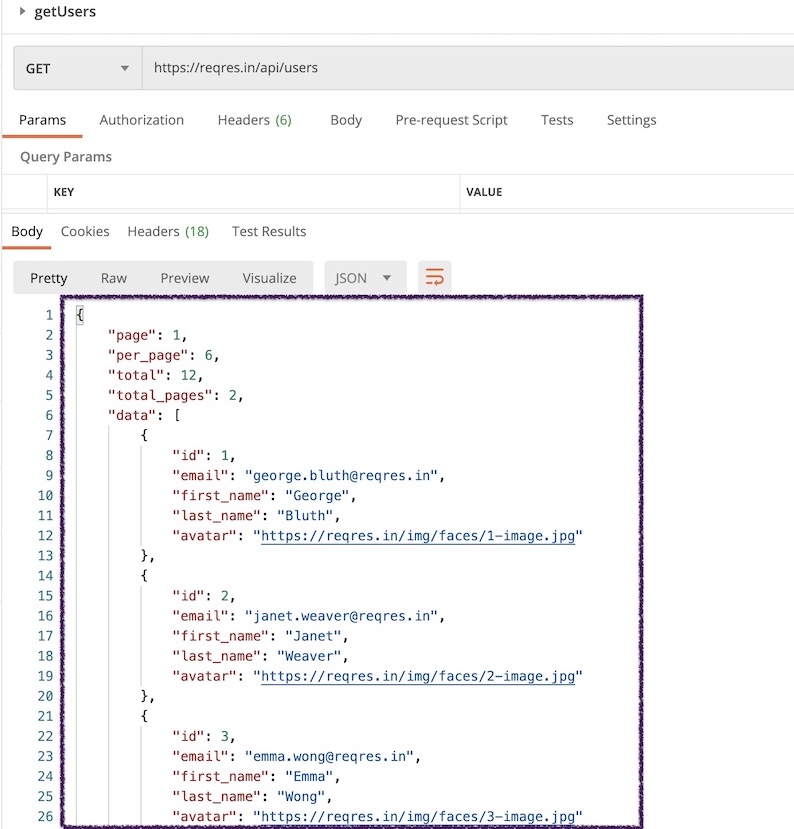
3.7- Paste Body example (as shown below):
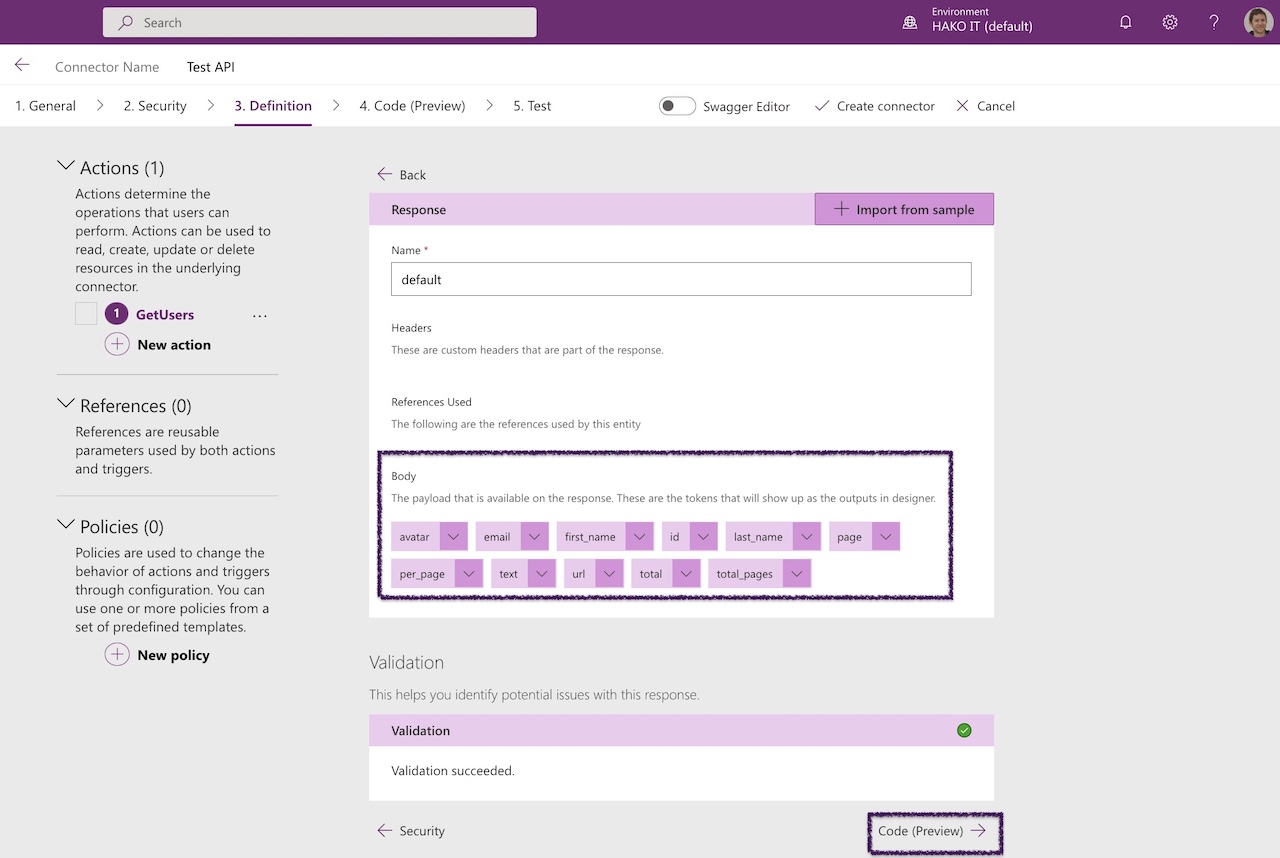
Then, select Import

Finally you will see the properties loaded in the response.
3.8- Select on Code to continue.
Step 4: (Optional) Using custom code on a Custom Connector in Power Apps
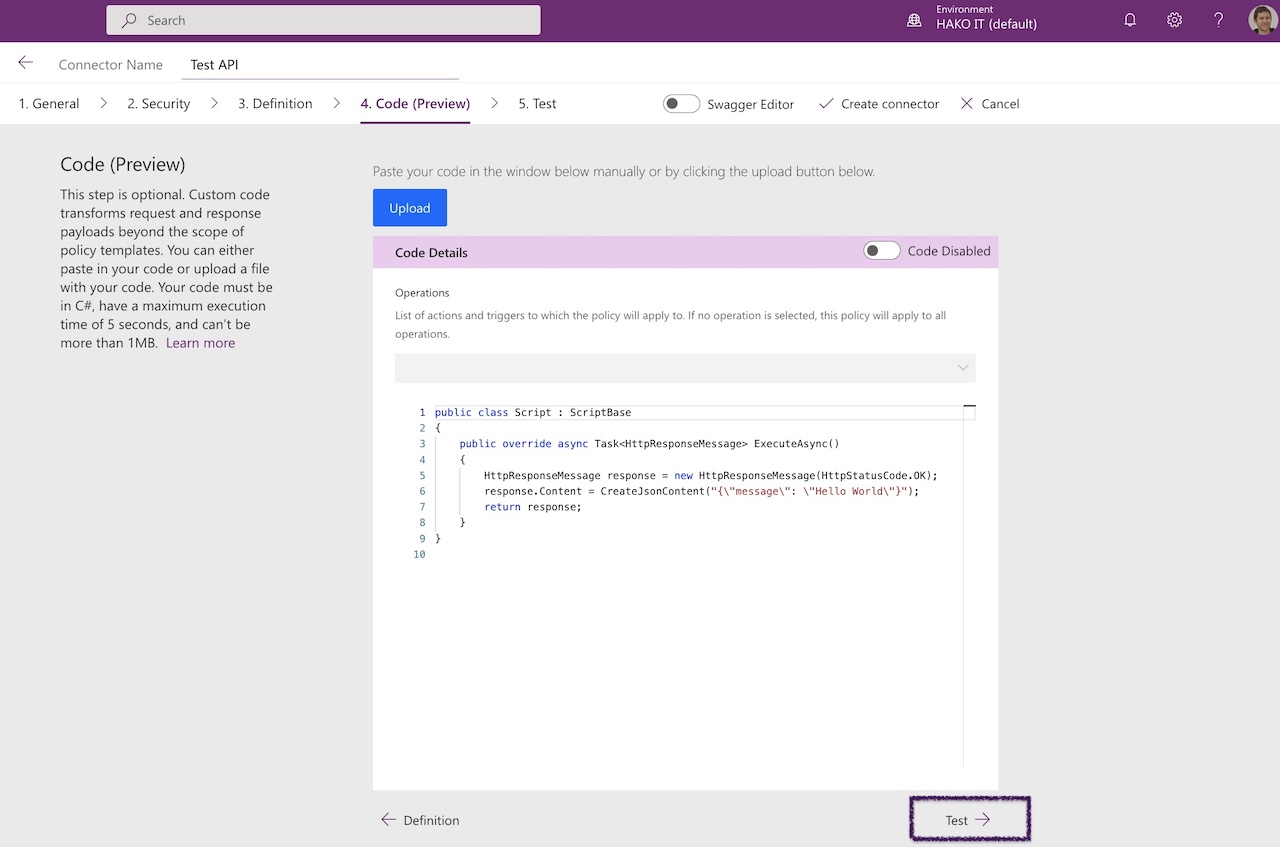
- This step is optional. You can complete creating your connector by passing this step and going to Step 5: Test the Custom Connector in Powerapps.
Using C# code, you can transform request and response payload data beyond the scope of existing policies. Transformations include sending an external request to fetch additional data.
On the Code tab:
4.1- Select on Test to continue.
Step 5: Test the Custom Connector in Powerapps
On the Test tab:
- For testing:
First, you have to create the connector and create a connection. Don’t worry, have the steps before.
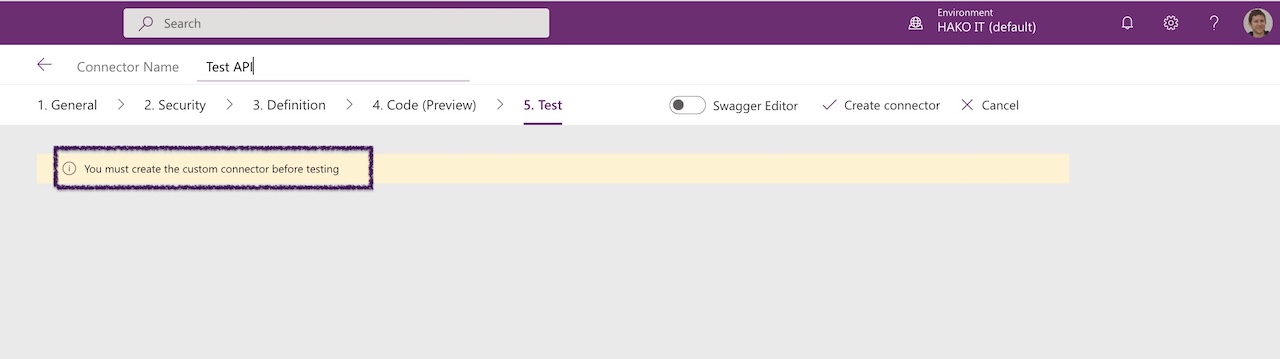
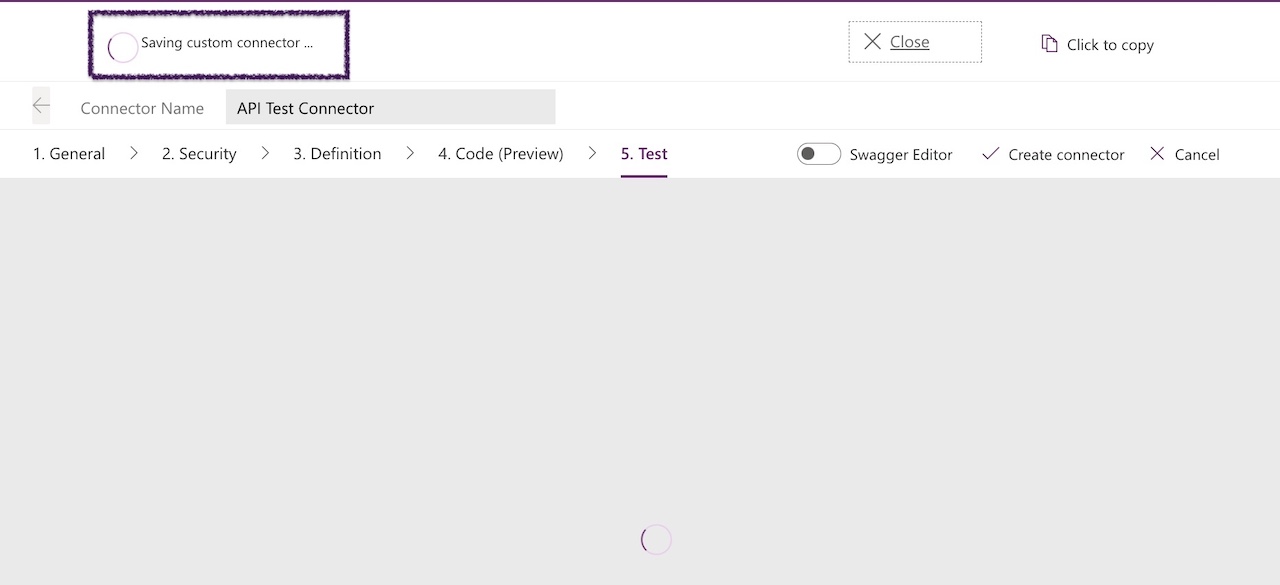
5.1- Create Connector
Select Create Connector.

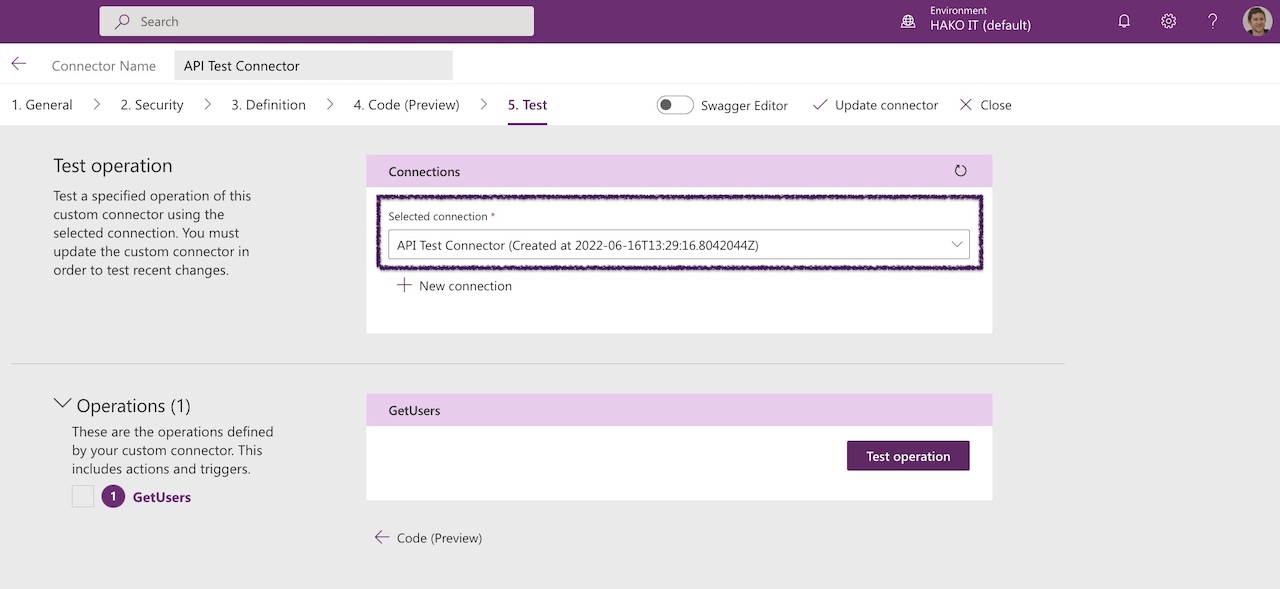
5.2- Create a new connection
Select New Connection.
Then, select Create.


5.3- Test Operation
Select Test Operation.
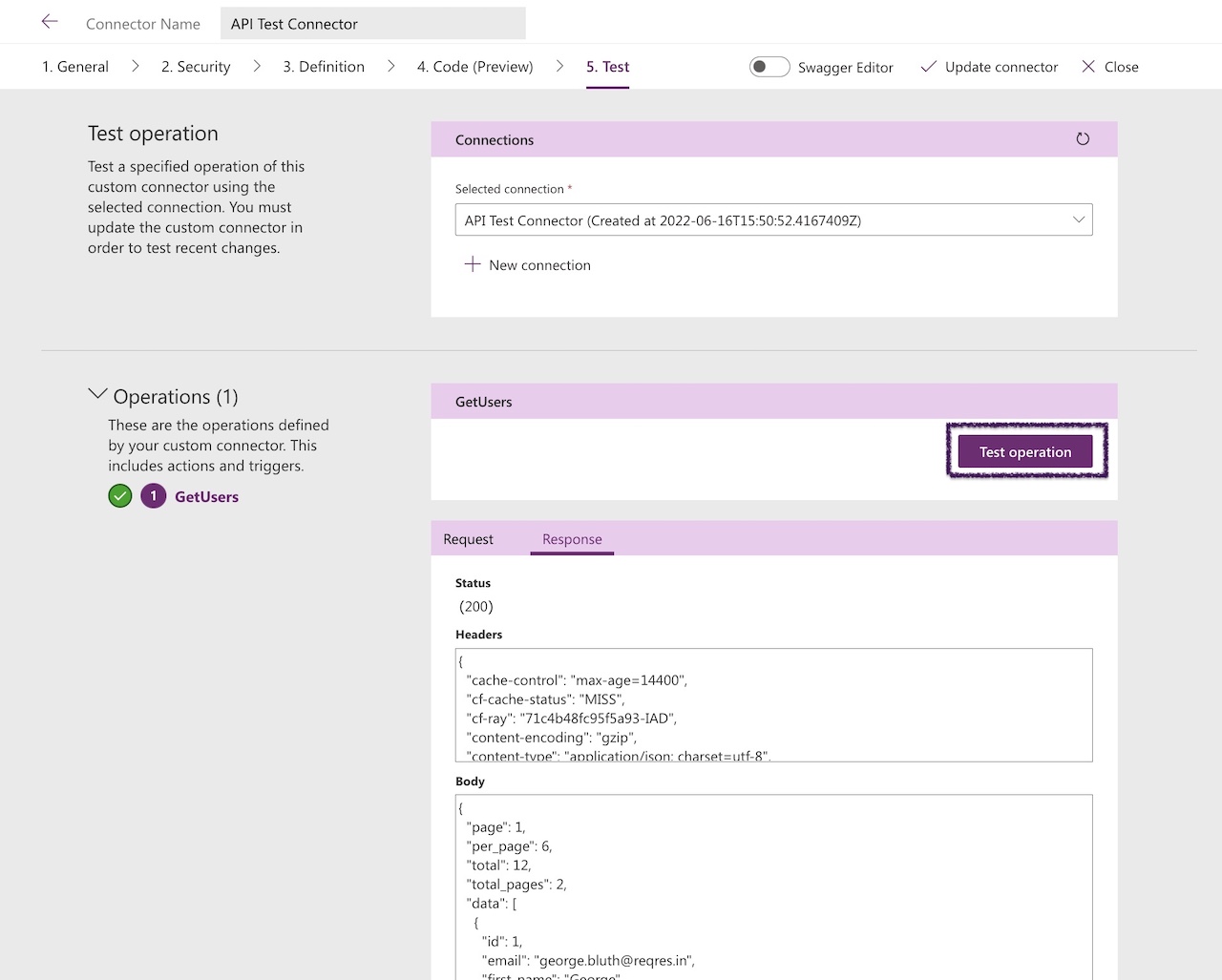
Congratulations! Now you are done, you can use the Custom Connector in Power Apps or Power Automate (ex Flows).
Select Close

Steps to Build Your Connector: It is easy to create custom connector power apps solutions if you follow the right steps. First, choose your data source, then configure the security settings. Learning to create custom connector definitions helps you build better, more flexible tools for your team.
How to export/download an existing custom connector on PowerApps?
It is a Best Practice to download all your connectors and use GIT or any other source code management system to save the files.
Easy, Select download on the custom connector:

Scenario #2: How to import an existing custom connector in PowerApps?
1- Select Custom connectors (Navigation pane on the left).
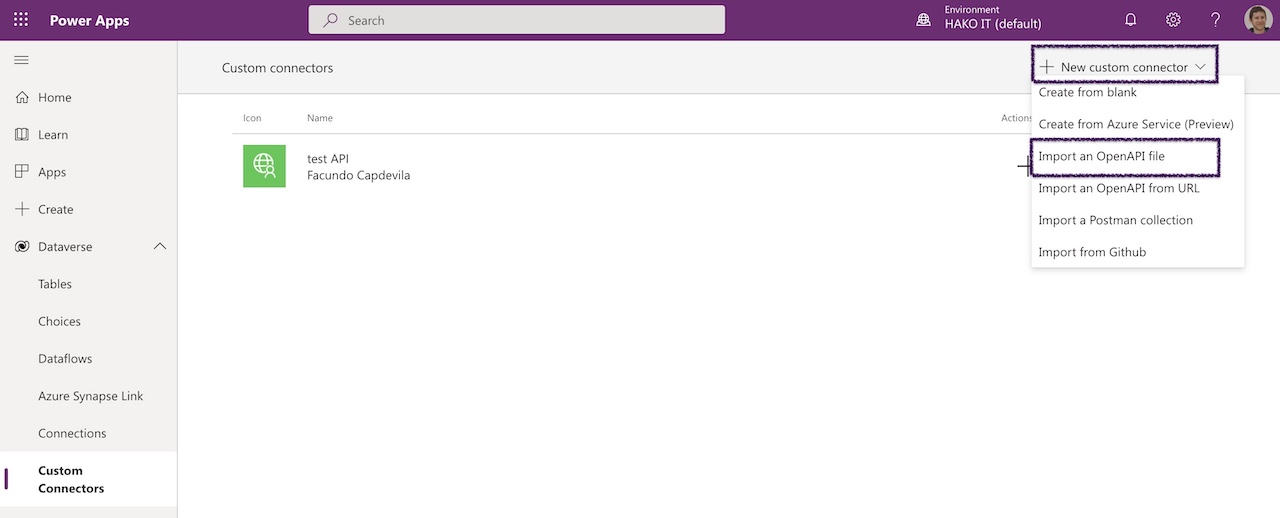
2- Select New custom connector, then choose Import an OpenAPI file.
Note: Another good option is to import a Postman collection (previously, you need export the Collection from Postman).

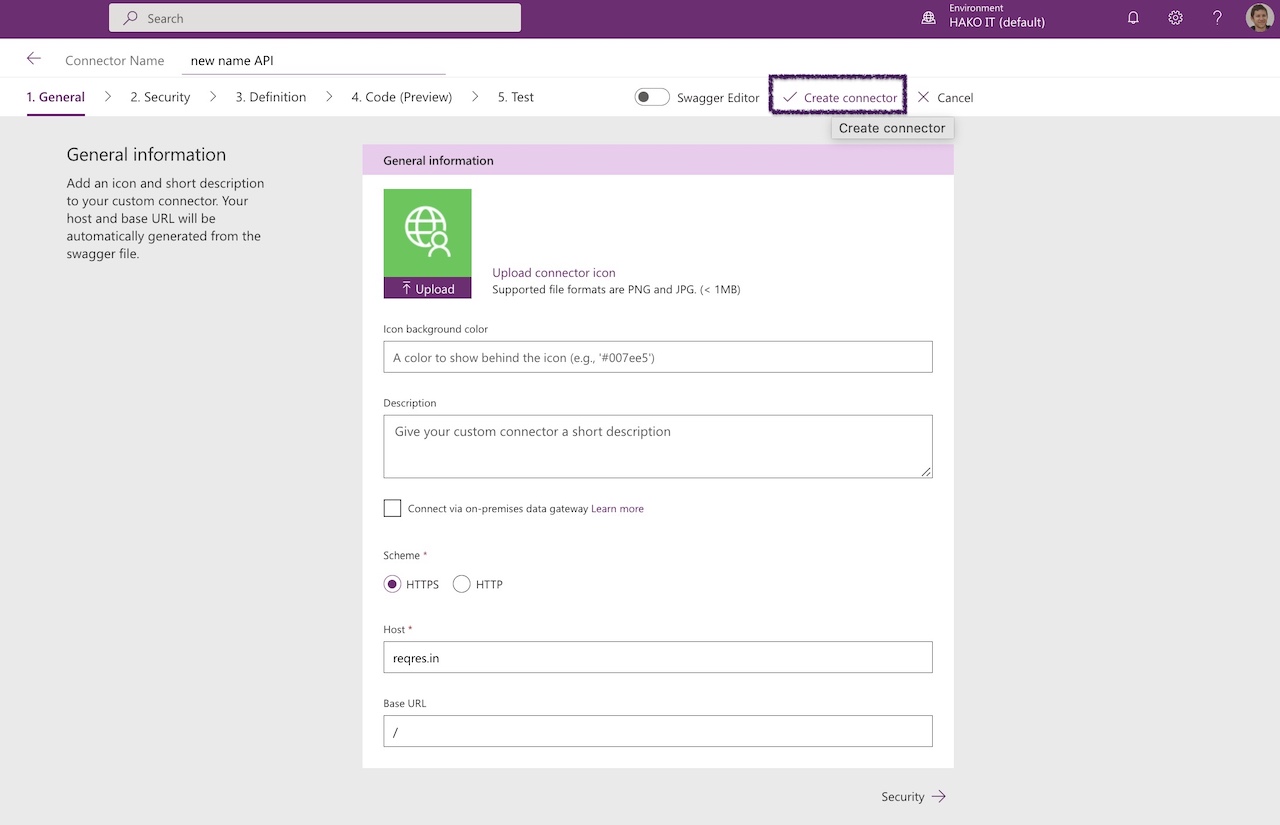
Insert the new name of the custom connector.
Then, select import for searching the file (select your file).
Finally, select Create.
Download working example: API-Test-Connector.swagger.v1.json

Finally, Select Create Connector
Integrating PowerApps with APIs (Custom Connector):
1- Sign in to Power Apps.
2- Create a new app or use an existing one.
Home > Blank app


3- Add the existing Custom Connector:
On the left pane, Data, Select Add Data,
Select Connectors tab or Find your custom connector name on the list.
Select the custom connector (it will load and create a connection).

4- Verify the Custom Connector:
In the list of connectors, select the custom connector.
On the Data pane, verify that the custom Connector (in this example APITestConnector) is listed.

5- We will add a new Gallery to use the Custom Connector and API.
-Insert a Gallery (example vertical).

6- On the Gallery properties, set Items:
APITestConnector.GetUsers().data

7- Change image property to “API.Response.data.avatar”
ThisItem.avatar

8- Change the Text property to:
ThisItem.first_name & ” ” ThisItem.last_name

9- Final Result
Congratulations! Now you are done!. You created a custom connector in Power Apps from Scratch and integrated it into a Canvas Power App.

Tips for Production-Ready Connectors
- Define accurate response schemas — Power Apps uses them for formula IntelliSense and autocomplete, which directly affects maker productivity.
- Use Swagger 2.0 format. OpenAPI 3.0 is not fully supported in custom connectors as of 2026.
- Add policy templates to transform responses if the API returns XML or non-standard formats that Power Apps doesn’t handle natively.
- Version your connector name (e.g.,
MyAPI_v2) before making breaking changes so existing apps continue to work while you migrate them.
Power Apps Premium Connectors: Costs and Licensing
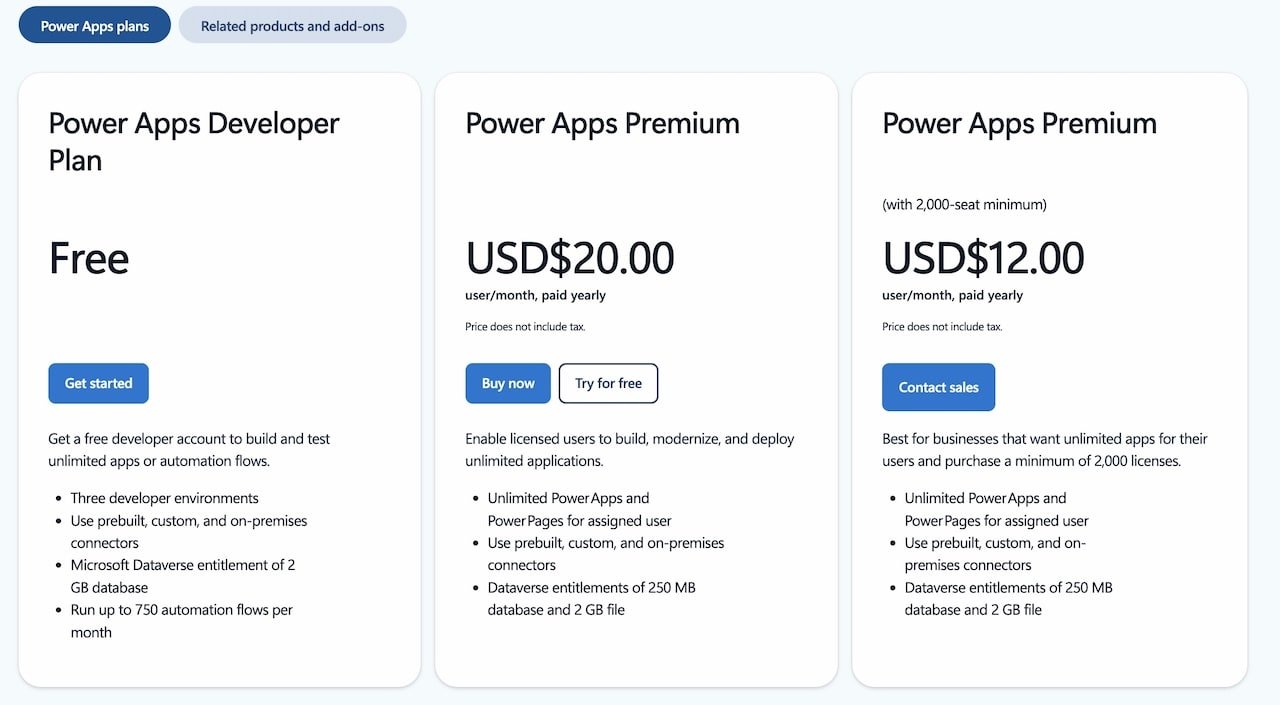
Important: A premium license is required to use custom connectors. Microsoft Power Apps Princing
🌟 Power Apps premium connectors also include connections to SQL Server, Dataverse, Salesforce, and more.
License Requirements
Power Apps premium connectors require specific licensing:
| License Type | Included Connectors | Approximate Price |
|---|---|---|
| Power Apps Basic | Standard connectors | Included with Office 365 |
| Power Apps Premium | All connectors + custom connectors | $20 USD/user/month |
| Power Apps per App | Specific premium connectors | $5 USD/user/app/month |
Benefits of Using Custom Connectors in Power Platform
Why Use Custom Options? Using custom connectors in power platform opens up new possibilities for your company. A custom connector power platform integration can link old software with new cloud tools. This makes your daily tasks faster and more automated.
- Integrate with any system or API
- Greater flexibility in your business apps
- Reuse across Power Apps and Power Automate
- Full control over HTTP calls (methods, headers, tokens)
When Do You Need Premium Connectors?
Power Apps premium connectors are required for:
- Custom connectors
- Advanced third-party APIs
- Complex enterprise integrations
- Specific data connectors like SQL Server
Best Practices for Custom Connectors
🔐 Security and Authentication
- Always use HTTPS for production connectors
- Implement proper authentication based on your API
- Validate input data to prevent errors or malicious requests
- Manage access tokens securely
⚡ Performance Optimization
- Limit the number of API calls
- Implement caching when appropriate
- Use pagination for large datasets
- Monitor your connector’s usage regularly
🛠️ Documentation and Maintenance
- Document all available operations clearly
- Maintain version control of your connector
- Test functionality regularly
- Update the connector as the API evolves
Frequently Asked Questions
Can custom connectors be used in Power Automate as well?
Yes. A custom connector created in Power Apps is automatically available in Power Automate within the same environment. Build it once, use it in both.
Do custom connectors work with on-premises APIs?
Yes, via the on-premises data gateway. Install the gateway on a machine with network access to the on-premises system, then reference the gateway in your connector’s security settings.
How many custom connectors can I create per environment?
There is no enforced limit on the number of custom connectors per environment under standard licensing.
How to create a custom connector in Power Apps?
To create a custom connector in Power Apps, you can either start from scratch or import an existing definition file. Follow the provided steps in the article for detailed instructions.
What is a Power Apps custom connector?
A custom connector in Power Apps allows you to connect your custom APIs to Microsoft Power Apps, Power Automate, and Azure Logic Apps. It acts as a wrapper around an API for communication purposes.
How to configure a custom connector in Power Apps to call an API?
To configure a custom connector, you can either create one from scratch or import an existing definition file. Each scenario has specific steps, which are explained in detail in the article.
What is the API information for the Power Apps custom connector example?
The API used in the example is Reqres, a free REST API designed for testing. The article provides the URL and other relevant details.
How do I start creating a custom connector in Power Apps from scratch?
Sign in to Power Apps, go to the Custom connectors section, and select “New custom connector” → “Create from blank.” The article outlines the full step-by-step process.
How do I choose the authentication type for a Power Apps custom connector?
In the Security tab, select the authentication type that fits your needs, such as No Authentication, API Key, OAuth 2.0, or others.
How do I define a custom connector in Power Apps?
Use the Definition tab to create actions, import request/response samples, and configure endpoints. Detailed steps are provided in the article.
What is the process for testing a custom connector in Power Apps?
Testing involves creating the connector, establishing a connection, and running test operations to validate functionality.
What are the benefits of using Power Apps?
Power Apps enables rapid application development, integration with multiple services, simplified deployment, streamlined data automation, and a user-friendly experience for both developers and end users.
How can I export or download an existing custom connector in Power Apps?
Locate the connector in the Custom connectors section and use the download option. The article explains the process step by step.
How do I import an existing custom connector in Power Apps?
Go to Custom connectors, select “New custom connector,” then choose “Import an OpenAPI file” or “Import a Postman collection,” and follow the guided steps.
Can I create custom connectors for any service or data source?
In most cases, yes. You need access to the API of the service or data source you want to integrate.
Is creating custom connectors in Power Apps difficult?
While it may seem complex initially, Power Apps provides an intuitive interface that makes the process relatively straightforward, even for beginners.
What are the benefits of using custom connectors?
Custom connectors extend app functionality by enabling integration with external services, allowing powerful automation and data exchange scenarios.
Can I share my custom connectors with others?
Yes, you can share them with colleagues and collaborators to improve teamwork and productivity.
Are there any limitations to custom connectors in Power Apps?
Yes, limitations may include rate limits from external APIs and service-specific constraints. It’s important to consider these when designing your connectors.
Power Apps Custom Connector Extras
How to import an API into Power Apps Video
Troubleshooting: Common Issues
Connection Errors
- Check the API URL
- Confirm the service is available
- Review security settings
Authentication Issues
- Validate API credentials
- Check access tokens
- Confirm user permissions
Response Errors
- Review the expected JSON format
- Validate the data structure
- Confirm field mappings
More Info 🔗: 6 Tips for Troubleshooting Errors in Power Apps | Debugging
Advanced Use Cases
ERP System Integration
Power Platform connectors enable integration with:
- SAP
- Oracle
- Dynamics 365
- Salesforce
Popular Third-Party APIs
- Google APIs
- Twitter API
- ChatGPT API
- E-commerce APIs
Automation with Power Automate
Combine Power Automate connectors for:
- Automated workflows
- Data synchronization
- Smart notifications
- Approval processes
Power Apps Useful Links
Use a custom connector from a Power Apps
Power Apps List of all Power Apps connectors
Custom Connector Power Apps Example information:
– Custom Connector in Power Apps example (GitHub)
Conclusion: Empower Your Apps with Custom APIs!
Creating a custom connector in Power Apps unlocks a world of possibilities for integrating your application with virtually any web service. From simple APIs to complex enterprise systems, custom connectors are the key to maximizing the potential of the Power Platform.
Keep in mind that Power Apps premium connectors require a specific license, but the investment is well worth it for the flexibility and power they provide. With this complete guide, you now have everything you need to create, configure, and deploy your own custom connectors.
🚀 Start connecting your app to external APIs today with your first Power Apps custom connector!
Power Apps Tutorials:
Do you want to continue learning about Power Apps? Take a look at the simple and easy Tutorial for beginners 👨💻👩💻 to Create an application with a Sharepoint List or with Excel:
How to build an app in 30 Seconds – Sharepoint | Microsoft Power Apps
Create an APP with EXCEL in 5 Steps
10 Common POWER APPS Mistakes & How to Avoid Them
20 Power Apps Examples 📱 and Use Cases
👉 Need expert help? Contact us for more information or schedule a meeting with our Power Platform specialists.