
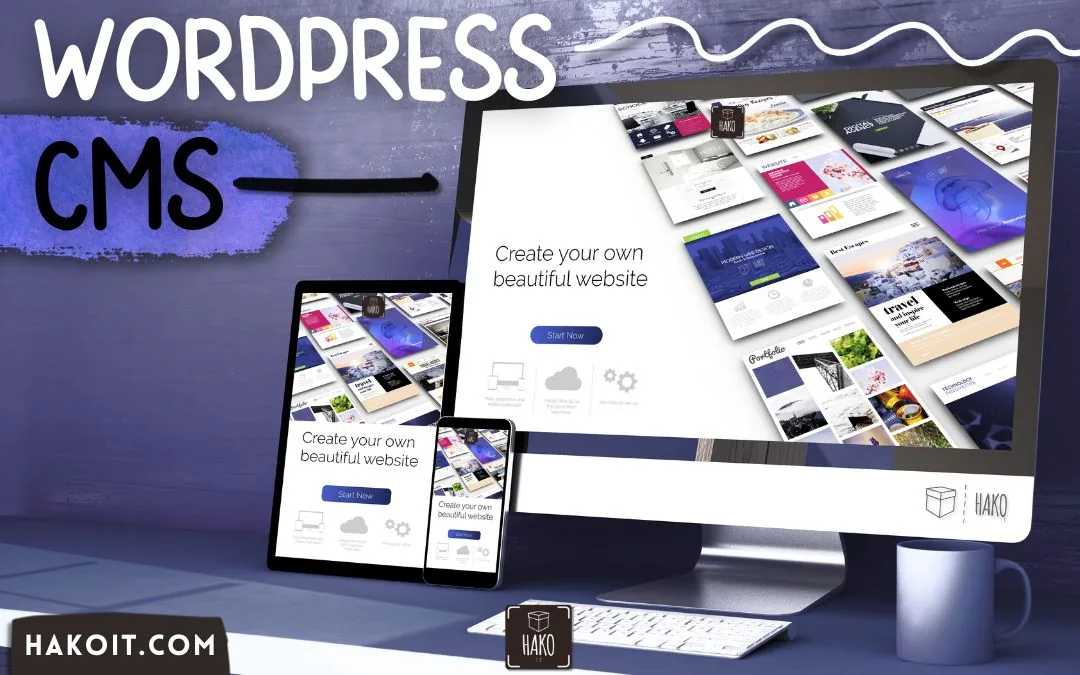
At Hako IT, we’ve helped companies of all sizes plan, build, and launch their digital presence. And time after time, WordPress stands out as the go-to solution — especially for businesses that want flexibility, scalability, and ease of use without sacrificing control.
In this guide, we’ll walk you through everything you need to know about using WordPress as a CMS: what it is, how it works, why it matters, and how to get the most out of it in 2026. Whether you’re a business owner, marketer, or someone just getting started, you’ll find actionable insights here.
What We'll Cover in This Guide
| Section | Topics Covered |
|---|---|
| What Is a CMS? | Definition, purpose, how it compares to coding from scratch |
| WordPress as a CMS | History, open-source nature, market dominance |
| Key Features | Gutenberg editor, themes, plugins, REST API |
| Why Choose WordPress | Flexibility, community, SEO, cost-effectiveness |
| WordPress vs. Other CMS Platforms | Joomla, Drupal, Webflow, Wix comparison |
| How to Use WordPress as a CMS | Setup, content types, roles, customization |
| WordPress for Business Websites | Use cases, integrations, enterprise options |
| SEO with WordPress | Plugins, best practices, technical SEO |
| Performance & Security | Caching, hosting, updates, hardening tips |
| FAQs | Common questions answered |
What Is a CMS? Understanding the Basics
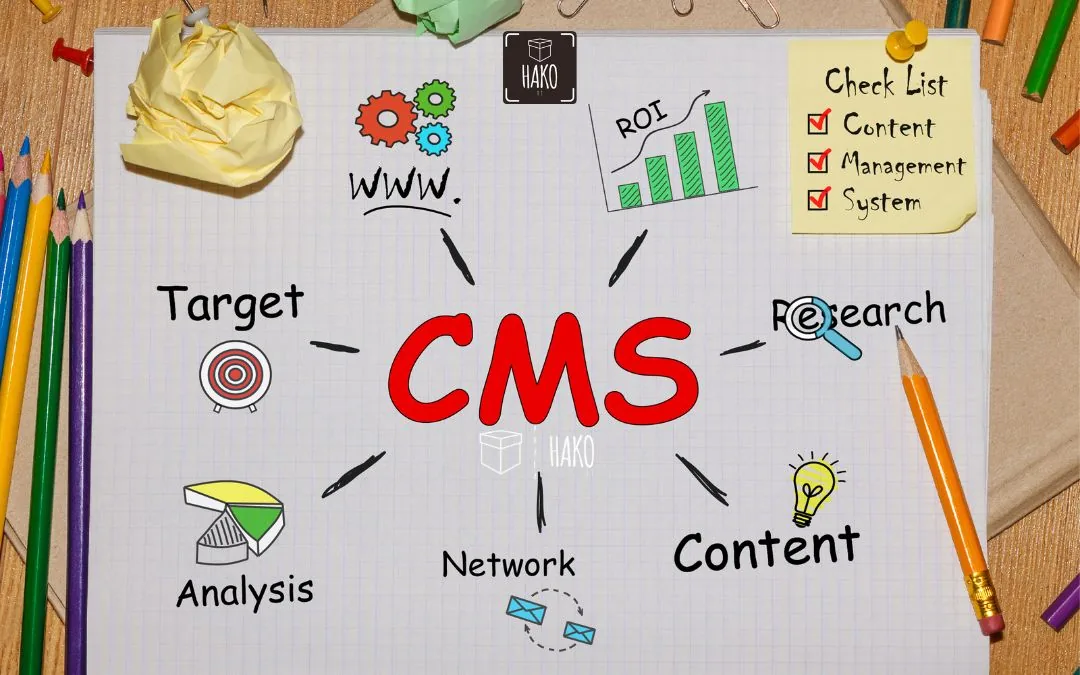
Before diving into WordPress specifically, it helps to understand what a content management system actually does. A CMS is software that allows users to create, manage, and publish digital content — without needing to write code for every change.
Think of it like this: without a CMS, every time you wanted to update a blog post, change an image, or add a new product, you’d need to manually edit HTML files. That’s time-consuming and error-prone. A CMS gives you a user-friendly interface that handles all the technical complexity behind the scenes.
A good CMS typically offers:
- A content editor — to write and format text, upload media, and organize pages
- Template/theme management — to control the visual design of your site
- User roles and permissions — to control who can edit, publish, or administrate
- Database integration — to store and retrieve content dynamically
- Plugin/extension support — to extend the platform’s default capabilities
There are dozens of CMS platforms available today — from open-source options like WordPress and Drupal, to hosted builders like Wix and Squarespace. Each has its strengths. But when it comes to versatility and long-term scalability, WordPress as a CMS consistently comes out on top.
WordPress as a CMS: History and Open-Source Power
WordPress was first released in 2003 by Matt Mullenweg and Mike Little as a fork of the blogging platform b2/cafelog. What started as a simple blogging tool has evolved into a full-featured WordPress CMS open source platform capable of powering anything from personal blogs to enterprise-level websites.
Being open source is a big deal. It means the WordPress core software is free to use, modify, and distribute. There are no licensing fees, no vendor lock-in, and a global community of developers constantly improving the platform. According to W3Techs, WordPress powers approximately 43% of all websites on the internet — a figure that continues to grow year after year.
There are two flavors of WordPress worth knowing:
- WordPress.com — a hosted service where WordPress manages the infrastructure for you. Easier to start, but more limited in customization.
- WordPress.org — the self-hosted version. You download the software, install it on your own hosting, and have full control. This is what most businesses use.
For any serious business website, WordPress.org (self-hosted) is the right choice. It gives you complete flexibility, full ownership of your data, and access to over 59,000 plugins in the official repository.
Key Features That Make WordPress a Leading CMS
The Gutenberg Block Editor
Since WordPress 5.0, the Gutenberg block editor has been the default content editing experience. Instead of a single text area, Gutenberg breaks content into individual “blocks” — paragraphs, images, videos, buttons, columns, and more. This gives editors incredible control over page layout without touching a single line of code.
Advanced page builders like Elementor and Divi take this even further, allowing drag-and-drop design with pixel-level precision. The result? Non-technical users can build beautiful, complex pages in minutes.
Themes and Design Flexibility
WordPress offers thousands of free and premium themes that control the overall look and feel of a site. From minimalist business layouts to vibrant e-commerce storefronts, there’s a theme for virtually every use case. With Full Site Editing (FSE) — a newer WordPress feature — you can customize every element of your site using the block editor, including headers, footers, and sidebars.
Plugins: Endless Extensibility
One of WordPress’s greatest strengths is its plugin ecosystem. Need an e-commerce store? Add WooCommerce. Need a booking system? There’s a plugin for that. Contact forms, SEO tools, social media integration, membership portals — nearly anything you can imagine can be added via plugin. With over 59,000 free plugins available plus thousands of premium options, WordPress as a CMS can be shaped to fit almost any requirement.
REST API and Headless WordPress
For developers who want more flexibility, WordPress includes a powerful REST API that allows the CMS to be used as a backend data source while the frontend is built with a modern JavaScript framework like React or Vue. This “headless” approach is increasingly popular for high-performance, custom web experiences.
Why Choose WordPress as a CMS for Your Website?
1. Ease of Use for Non-Technical Teams
WordPress was built with simplicity in mind. Your marketing team can publish blog posts, update product pages, or swap out banner images without ever filing an IT ticket. That independence saves time and reduces bottlenecks — a major competitive advantage for fast-moving businesses.
2. Massive Community and Support
With millions of active users and contributors worldwide, WordPress has one of the largest support ecosystems of any technology platform. Whether you encounter a bug, need a tutorial, or want to hire a specialist, help is always close at hand. There are WordPress meetups, conferences (WordCamp), and thousands of dedicated agencies globally.
3. Built-In SEO Friendliness
WordPress generates clean, semantic HTML code by default — a solid foundation for search engine optimization. Pair that with a dedicated SEO plugin like Yoast SEO or Rank Math, and you have a powerful toolkit for improving your search rankings. You can easily customize meta titles, meta descriptions, XML sitemaps, canonical URLs, and structured data, all from a friendly dashboard.
4. Scalability
WordPress scales exceptionally well. Small businesses can start with a simple brochure site and grow into a complex, high-traffic platform without migrating to a different system. Brands like The New York Times, CNN, and Sony Music all use WordPress-based technology — proof that the platform can handle serious scale.
5. Cost-Effectiveness
Because the core software is free, your main costs are hosting, any premium themes or plugins you choose, and development time. Compared to custom-built platforms or expensive proprietary CMS solutions, WordPress offers outstanding value — especially for small and medium-sized businesses watching their budget.
💡 Thinking about building a professional WordPress website?
At Hako IT, we specialize in custom WordPress development tailored to your business goals. From design to launch — we’ve got you covered.
Explore our Web Development Services →
WordPress vs. Other CMS Platforms: How Does It Compare?
It’s worth understanding how WordPress stacks up against some of its main competitors. While every platform has legitimate use cases, the comparison helps clarify why WordPress is often the smartest default choice.
| Platform | Best For | Limitations | Open Source? |
|---|---|---|---|
| WordPress | All-purpose: blogs, business sites, e-commerce, apps | Requires good hosting and maintenance | ✅ Yes |
| Drupal | Complex, data-heavy enterprise sites | Steep learning curve, fewer themes | ✅ Yes |
| Joomla | Community portals, membership sites | Declining community, harder to use | ✅ Yes |
| Webflow | Design-first, visually complex sites | Proprietary, higher cost, limited plugins | ❌ No |
| Wix / Squarespace | Simple personal or small business sites | Limited scalability, vendor lock-in | ❌ No |
The main advantage WordPress has over Wix or Squarespace is full ownership and control. With those hosted builders, you’re renting space in their ecosystem. With WordPress (self-hosted), the site and all its data belong entirely to you.
Compared to Drupal, WordPress is far more approachable for everyday users and has a much larger plugin marketplace. Drupal shines when you need highly customized data structures at enterprise scale — but for most businesses, WordPress gets the job done more efficiently.
How to Use WordPress as a CMS for Your Website
Step 1: Choose a Hosting Provider
You’ll need a web hosting account to install WordPress. For most businesses, a managed WordPress host like WP Engine, Kinsta, or SiteGround is a great choice. These providers handle automatic updates, security, and performance optimization so you can focus on your content.
We use and highly recommend Hostinger — Get 20% off Hostinger: 20% DISCOUNT LINK HERE
Step 2: Install WordPress
Most hosts offer a one-click WordPress installation. Once installed, you’ll access your dashboard at yourdomain.com/wp-admin. From here, you control everything about your site.
Step 3: Choose and Customize a Theme
Navigate to Appearance > Themes to browse and install a theme. For business websites, we recommend starting with a lightweight, well-coded theme — then customizing it to match your brand through the Customizer or Full Site Editor.
Step 4: Install Essential Plugins
A minimal set of must-have plugins for most business sites includes:
- Yoast SEO or Rank Math — for search engine optimization
- WP Rocket or LiteSpeed Cache — for performance and caching
- Wordfence or Sucuri — for security
- Contact Form 7 or WPForms — for contact forms
- UpdraftPlus — for automated backups
Step 5: Create Your Content Structure
WordPress supports Posts (for blog content, organized by categories and tags) and Pages (for static content like Home, About, Services, Contact). You can also create Custom Post Types to structure specific content like team members, portfolios, or case studies — giving you a truly tailored CMS experience.
Step 6: Set Up User Roles
WordPress has built-in user roles: Administrator, Editor, Author, Contributor, and Subscriber. Assigning the right roles ensures the right people have access to the right features — critical for team-based content workflows.

WordPress for Business Websites: Practical Use Cases
One of the most compelling reasons companies choose WordPress as a CMS is how well it adapts to real-world business needs. Here are some of the most common and valuable use cases:
Corporate Brochure Websites
A professional multi-page site presenting your company, services, team, and contact information. WordPress makes it easy to keep this content fresh and updated without developer involvement.
Blog and Content Marketing
WordPress has its roots in blogging, and it remains the best platform for content-driven marketing. Its editorial workflow, scheduling tools, and category system make it ideal for teams publishing regularly.
E-Commerce Stores
With WooCommerce installed, WordPress becomes a full-featured online store. You can sell physical products, digital downloads, subscriptions, and services. WooCommerce powers approximately 39% of all online stores worldwide.
Landing Pages and Lead Generation
Combining WordPress with a page builder and CRM integrations (like HubSpot or Mailchimp) creates a powerful lead generation engine. Track conversions, A/B test headlines, and optimize your funnel — all within the same platform.
Multilingual Websites
Plugins like WPML or Polylang allow you to build fully multilingual websites. This is essential for businesses serving international audiences or operating in multiple markets.
SEO with WordPress: Getting Found on Google
One of the strongest arguments for using WordPress as a CMS is how naturally it supports SEO. The platform generates clean HTML, uses human-readable URLs (permalinks), and makes it simple to add alt text to images, structure content with proper headings, and create XML sitemaps.
Recommended SEO Plugins
Yoast SEO and Rank Math are the two leading SEO plugins for WordPress. Both provide:
- Meta title and description editing per page/post
- Readability and keyword analysis
- Schema markup (structured data) for rich results
- XML sitemap generation
- Breadcrumb navigation support
Technical SEO Advantages
WordPress allows full control over URL structure, canonical tags, robots.txt, and .htaccess files — giving developers the tools needed for technically sound SEO. With the right hosting, you can also implement server-side caching, CDN delivery, and Core Web Vitals optimizations that directly impact your Google rankings.
Performance and Security: Keeping Your WordPress Site Healthy
Performance Optimization
A fast website isn’t just good UX — it’s a ranking factor. Here are the key levers for WordPress performance:
- Choose quality hosting — Managed WordPress hosts optimize server configurations specifically for WordPress performance.
- Use a caching plugin — WP Rocket, LiteSpeed Cache, or W3 Total Cache dramatically reduce server load and page load times.
- Optimize images — Plugins like ShortPixel or Smush compress images automatically without visible quality loss.
- Use a CDN — A content delivery network (like Cloudflare) serves your static assets from servers close to each visitor, reducing latency.
- Minimize plugins — Only keep plugins you actively use. Each plugin adds some overhead; quality over quantity matters here.
Security Best Practices
WordPress’s popularity also makes it a target for hackers. The good news: most attacks exploit outdated software or weak passwords — easily preventable issues. Best practices include:
- Keep WordPress core, themes, and plugins updated at all times
- Use strong, unique passwords and enable two-factor authentication
- Install a security plugin like Wordfence or Sucuri
- Perform regular backups with UpdraftPlus or similar tools
- Use HTTPS (SSL certificate) — standard with most modern hosts
- Limit login attempts to prevent brute-force attacks
Ready to Build Your Professional WordPress Website?
Hako IT has helped businesses across industries launch high-performing WordPress websites — designed for growth, built for speed, and optimized for search.
Summary: WordPress as a CMS
| Topic | Key Takeaways |
|---|---|
| What is a CMS? | Software that enables non-technical users to create, manage, and publish web content without manual coding. |
| WordPress Dominance | Powers over 43% of the web; renowned for its open-source nature, flexibility, and massive community. |
| Key Features | Gutenberg block editor, thousands of themes/plugins, and a REST API for headless development. |
| Why Choose It? | Cost-effective, scalable, SEO-friendly, and offers full data ownership for businesses. |
| WordPress vs. Others | Outperforms Wix/Squarespace in ownership and Drupal in ease-of-use/accessibility. |
| Business Use Cases | Ideal for corporate sites, e-commerce (WooCommerce), blogs, lead generation, and multilingual portals. |
| Security & Performance | Requires regular updates, reputable hosting, caching plugins, and SSL certificates to stay optimized. |
| Getting Started | Requires self-hosting (WordPress.org), theme selection, essential security/SEO plugins, and content architecture. |
Frequently Asked Questions About WordPress as a CMS
What makes WordPress a CMS and not just a blogging platform?
WordPress started as a blogging tool, but it has evolved far beyond that. Today it functions as a full content management system capable of managing any type of digital content — pages, posts, custom content types, media, users, and more. Its plugin ecosystem and REST API also allow it to power complex web applications. Calling it “just a blogging platform” in 2026 significantly undersells what it can do.
Is WordPress free to use as a CMS?
Yes — the WordPress.org software itself is completely free and open source. Your costs come from web hosting (starting from around $10–$30/month for quality shared hosting), any premium themes or plugins you choose, and development time if you hire professionals. Compared to proprietary CMS platforms with annual licensing fees, WordPress is highly cost-effective.
Can I use WordPress as a CMS only, without a blog?
Absolutely. Many businesses use WordPress purely as a CMS for managing static pages, landing pages, product pages, and other non-blog content. You can disable the blog section entirely or simply not use it. WordPress’s Custom Post Types and taxonomy system give you a powerful content architecture without any blogging component whatsoever.
How does WordPress handle multiple users and content workflows?
WordPress has a robust built-in user management system with five default roles: Administrator, Editor, Author, Contributor, and Subscriber. Each role has different permissions, allowing you to create clear content workflows. For example, Authors can write and publish their own posts, while Contributors can write but not publish without Editor approval. This makes WordPress suitable for teams of any size.
Is WordPress good for SEO?
WordPress is widely regarded as one of the most SEO-friendly CMS platforms available. It generates clean semantic HTML, supports customizable permalinks, and integrates seamlessly with powerful SEO plugins like Yoast SEO and Rank Math. With the right setup, you can fully control meta tags, structured data, sitemaps, and more — all without touching code.
What are the main differences between WordPress.com and WordPress.org?
WordPress.com is a hosted service — WordPress manages the servers, and you work within their ecosystem. It’s easier to start but more limited in terms of plugins, themes, and customization. WordPress.org is the self-hosted version where you download the software and install it on your own hosting. You have complete freedom and ownership. For any serious business website, WordPress.org (self-hosted) is the recommended choice.
How secure is WordPress as a CMS?
WordPress itself is a very secure platform when properly maintained. The majority of security incidents occur due to outdated plugins or themes, weak passwords, or poor hosting environments — not vulnerabilities in the WordPress core. By keeping everything updated, using a security plugin, enabling two-factor authentication, and choosing a reputable host, you can maintain a highly secure WordPress site.
Conclusion: WordPress as a CMS Is a Smart Long-Term Investment
If you’re looking for a platform that’s proven, flexible, scalable, and cost-effective, WordPress as a CMS ticks every box. From a simple five-page business site to a complex multi-language content hub, WordPress grows with you — and the massive community behind it means you’ll never be stuck without support.
The key is starting with the right foundation: quality hosting, a clean theme, essential plugins, and a clear content strategy. Whether you manage it yourself or work with a development partner, WordPress gives you full control over your digital presence.
At Hako IT, we build custom WordPress websites that are designed for performance, built for your brand, and optimized to convert visitors into customers. If you’re ready to take the next step, we’d love to hear about your project.